





















Wireshark is one of the most trusted tools for understanding what is really happening on a network. For beginners, it may look intimidating at first: colorful rows, cryptic protocol names, scrolling packets, and a large number of filters. However, with a structured approach, even a new analyst can use Wireshark to capture, filter, and analyze network traffic with confidence.
TLDR: Wireshark allows a user to capture live network packets and inspect them in detail. A beginner should start by selecting the correct network interface, capturing a small amount of traffic, and using filters to focus on relevant packets. The most useful skills include reading packet details, applying display filters, following conversations, and identifying suspicious or broken network behavior. With practice, Wireshark becomes a powerful troubleshooting and cybersecurity tool.
What Wireshark Is and Why It Matters
Wireshark is a free, open-source packet analyzer used by network administrators, security analysts, developers, students, and digital investigators. It captures packets moving across a network interface and displays them in a readable format. Each packet can reveal information such as source and destination IP addresses, ports, protocols, timestamps, payload data, and error conditions.
In practical terms, Wireshark helps answer questions such as:
- Why is a website loading slowly?
- Which device is sending unusual traffic?
- Is DNS resolution working correctly?
- Are packets being dropped or retransmitted?
- Is an application communicating with an unexpected server?
For beginners, the most important idea is simple: Wireshark does not magically explain every problem. Instead, it provides evidence. A skilled user learns to interpret that evidence by understanding protocols, patterns, and context.
Installing and Opening Wireshark
Wireshark is available for Windows, macOS, and Linux. During installation, Windows users are usually prompted to install Npcap, which allows packet capture. Linux users may need proper permissions to capture traffic without running the program as root.
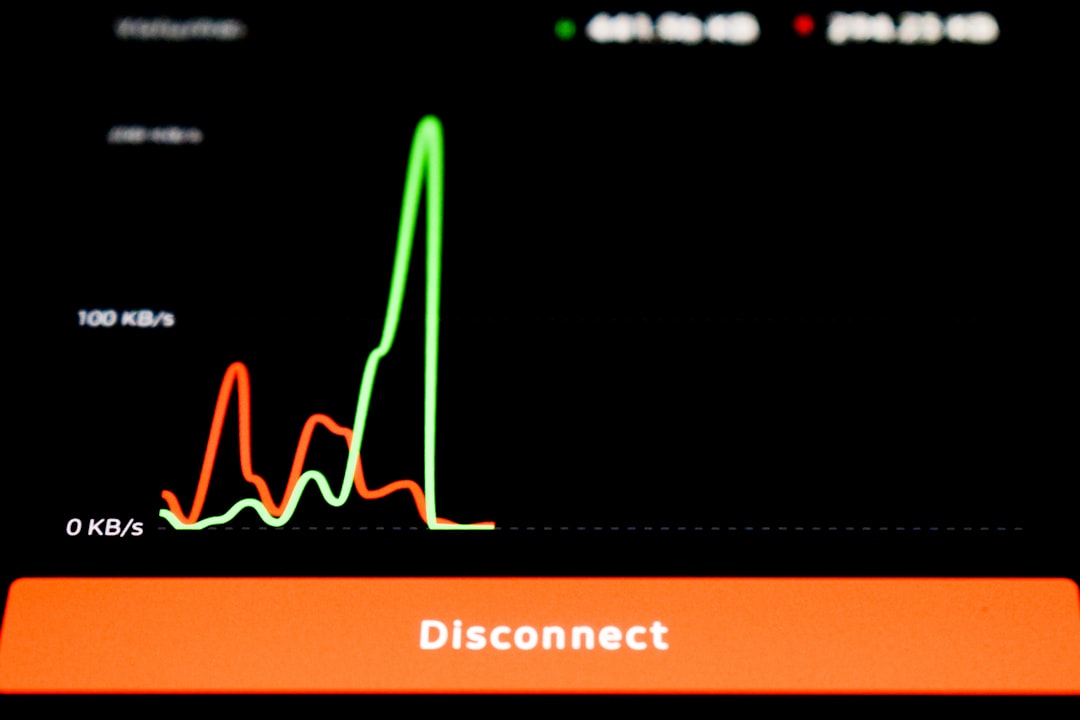
After opening Wireshark, the main screen displays available network interfaces. These may include Wi-Fi, Ethernet, loopback, VPN adapters, or virtual machine interfaces. A beginner should choose the interface that is actually carrying traffic. Wireshark helps by showing small activity graphs beside each interface, making it easier to identify the active one.
Image not found in postmetaCapturing Network Traffic
To begin capturing, the analyst selects a network interface and starts the capture. Packets will appear immediately if the interface is active. At first, the volume may seem overwhelming, especially on a busy network. This is normal. A professional approach is to capture only the traffic needed to answer a specific question.
For example, if the goal is to investigate a website issue, the analyst may start a capture, visit the website, wait for the page to load, and then stop the capture. This creates a smaller, cleaner packet capture that is easier to analyze.
Basic capture controls include:
- Start Capture: Begins recording packets on the selected interface.
- Stop Capture: Ends the packet capture session.
- Restart Capture: Clears the current capture and starts again.
- Save Capture: Stores packets in a file, usually with the .pcapng extension.
Saving capture files is useful because they can be reviewed later, shared with team members, or used as evidence during troubleshooting. However, packet captures may contain sensitive data, so they should be handled carefully.
Understanding the Wireshark Layout
Wireshark presents captured data in three main sections. Understanding these sections is essential for efficient analysis.
- Packet List: The top pane shows each captured packet as a row. It includes columns such as packet number, time, source, destination, protocol, length, and summary information.
- Packet Details: The middle pane breaks down the selected packet by protocol layers, such as Ethernet, IP, TCP, UDP, DNS, HTTP, or TLS.
- Packet Bytes: The bottom pane shows the raw packet data in hexadecimal and ASCII form.
A beginner should spend time clicking different packets and expanding fields in the packet details pane. This reveals how data is wrapped in layers. For example, a DNS packet may appear inside Ethernet, IP, and UDP layers. This layered structure reflects how network communication actually works.
Capture Filters vs. Display Filters
One of the most important Wireshark concepts is the difference between capture filters and display filters.
Capture filters decide what traffic is recorded in the first place. They are applied before packets are captured. Because they discard traffic that does not match, they are useful for reducing file size and noise. However, they must be used carefully because excluded packets cannot be recovered later.
Display filters do not delete packets. They only control what appears on the screen after capture. This makes them safer for beginners. A user can capture everything and then apply different display filters while analyzing the data.
Common display filters include:
ip.addr == 192.168.1.10— Shows packets involving a specific IP address.tcp.port == 443— Shows HTTPS traffic using TCP port 443.dns— Shows DNS queries and responses.http— Shows unencrypted HTTP traffic.tcp— Shows only TCP traffic.udp— Shows only UDP traffic.icmp— Shows ping and other ICMP traffic.
Wireshark’s display filter bar changes color to help indicate whether a filter is valid. A green filter is valid, while a red filter contains an error. This feature is especially helpful for beginners learning filter syntax.
Using Filters Like a Professional
Professional analysis usually begins with a broad view and gradually narrows down. Instead of randomly scrolling through thousands of packets, the analyst forms a question and uses filters to answer it.
For example, if a device cannot reach a website, the analyst may begin with DNS:
dns
This reveals whether the device is asking for the website’s IP address and whether a DNS server is responding. If DNS works, the analyst may filter for the server IP address:
ip.addr == 93.184.216.34
Then TCP behavior can be examined. If the connection fails, the analyst might look for repeated SYN packets, resets, or retransmissions. Filters such as the following can help:
tcp.flags.syn == 1tcp.analysis.retransmissiontcp.flags.reset == 1
This step-by-step method is more effective than scanning packets manually. It also mirrors how experienced network engineers isolate problems.
Following TCP Streams
One of Wireshark’s most useful features is Follow TCP Stream. When a TCP packet is selected, the analyst can choose this option to view the full conversation between two endpoints. Wireshark then reconstructs the communication in sequence.
This is especially useful for protocols that transmit readable text, such as HTTP, SMTP, FTP, or certain API calls. If the traffic is encrypted with TLS, the stream may still show connection details, but the actual content will not be readable unless decryption keys are available.
Following a stream helps a beginner understand context. Instead of seeing isolated packets, the analyst views a complete exchange: request, response, headers, errors, and sometimes application data.
Analyzing Common Protocols
Beginners often gain confidence by focusing on common protocols. Each protocol tells a different part of the network story.
DNS
DNS converts domain names into IP addresses. In Wireshark, DNS packets show queries and responses. If a website fails to load, checking DNS is often the first step. The analyst should look for query names, response codes, and returned IP addresses.
TCP
TCP is used by many reliable applications, including web browsing, email, and file transfers. Important TCP concepts include the three-way handshake, acknowledgments, retransmissions, and resets. A large number of retransmissions may indicate packet loss, congestion, or connectivity problems.
HTTP and HTTPS
HTTP traffic is readable in Wireshark if it is not encrypted. HTTPS uses TLS encryption, so packet contents are usually hidden. However, Wireshark can still show IP addresses, ports, TLS handshakes, certificate information, and server names in some cases.
ICMP
ICMP is commonly associated with ping. It can help verify whether a device is reachable and how long responses take. Wireshark can show echo requests, echo replies, destination unreachable messages, and other diagnostic information.
Recognizing Suspicious Traffic
Wireshark is not only a troubleshooting tool; it is also valuable for security analysis. Suspicious traffic may include repeated failed connection attempts, communication with unknown external IP addresses, unusual DNS queries, or unexpected protocols on a network.
Examples of behavior worth investigating include:
- A workstation repeatedly contacting unfamiliar domains.
- Large outbound data transfers to an unknown server.
- Port scanning patterns, such as many connection attempts to different ports.
- DNS queries with long, strange, or random-looking domain names.
- Unencrypted credentials sent over insecure protocols.
However, the analyst should avoid jumping to conclusions. Some unusual traffic may be caused by legitimate software updates, cloud services, monitoring tools, or misconfigured applications. Wireshark provides clues, but additional investigation is usually required.

Best Practices for Beginners
To use Wireshark effectively, beginners should follow a few practical habits:
- Capture with a purpose: A clear question leads to better analysis.
- Keep captures small: Short captures are easier to review and share.
- Use display filters first: They are safer because they do not remove packets from the capture file.
- Learn normal traffic: Understanding normal network behavior makes unusual activity easier to spot.
- Document findings: Notes about IP addresses, timestamps, filters, and observations help create a reliable investigation trail.
- Protect sensitive data: Packet captures can include usernames, cookies, internal IP addresses, and business information.
A beginner should also practice in a lab environment. Capturing traffic while visiting test websites, performing pings, running DNS lookups, or connecting to a local service can build familiarity without risking production systems.
Common Mistakes to Avoid
New users often make predictable mistakes. One common mistake is capturing on the wrong interface. If no relevant packets appear, the selected adapter may not be the one carrying traffic. Another mistake is relying only on packet colors. Wireshark’s color rules are helpful, but they do not automatically mean something is good or bad.
Another common issue is using overly narrow capture filters too early. If important packets are excluded during capture, the analyst may miss the real problem. Display filters are usually better during the learning stage.
Finally, beginners sometimes focus on a single packet without considering the full conversation. Network analysis is usually about patterns over time, not isolated lines on the screen.
Conclusion
Wireshark gives beginners a direct view into network communication. By learning how to choose the correct interface, capture traffic, apply filters, inspect packet details, and follow conversations, a new analyst can quickly move from confusion to clarity. The tool becomes even more powerful when combined with knowledge of common protocols such as DNS, TCP, HTTP, HTTPS, and ICMP.
Like professional network analysis, effective Wireshark use depends on curiosity, structure, and patience. When the analyst asks clear questions and follows the evidence packet by packet, Wireshark becomes more than a technical utility. It becomes a window into how devices, applications, and networks truly communicate.
FAQ
Is Wireshark free to use?
Yes. Wireshark is free and open source. It can be downloaded and used on Windows, macOS, and Linux.
Is Wireshark legal?
Wireshark is legal when used on networks where the user has permission to capture traffic. Capturing packets on networks without authorization may violate laws, policies, or privacy rules.
What is the difference between a capture filter and a display filter?
A capture filter controls what packets are recorded during capture. A display filter only controls what packets are shown after capture. For beginners, display filters are usually safer.
Can Wireshark read encrypted HTTPS traffic?
Wireshark can show metadata such as IP addresses, ports, TLS handshake details, and some certificate information. However, the encrypted content of HTTPS traffic is not readable unless proper decryption keys are available.
What is the best first filter to learn?
A useful first filter is ip.addr == x.x.x.x, replacing the placeholder with a real IP address. It shows all packets involving that device or server.
Why are there so many packets in Wireshark?
Modern networks are constantly communicating. Background services, DNS requests, updates, cloud applications, and local discovery protocols can generate many packets even when no obvious activity is happening.
Can Wireshark detect hackers automatically?
No. Wireshark does not automatically confirm that an attacker is present. It shows traffic evidence that a trained analyst can use to identify suspicious or malicious behavior.









