
























Laptops are amazing little machines. They work hard. They travel with us. They sit on beds, couches, and sometimes even our laps for hours. But all that power creates heat. And too much heat can quietly damage your laptop over time.
TLDR: If your laptop runs very hot, slows down often, crashes randomly, shows screen glitches, or shuts off by itself, it could be heat damaged. Loud fans and strange burning smells are also warning signs. Overheating can harm internal parts like the battery, motherboard, and graphics chip. The sooner you spot the signs, the better your chance of saving it.
Let’s break it down in a simple, fun way. No tech degree required.
Why Heat Is a Big Deal
Laptops create heat whenever they work. Watching videos. Playing games. Running many tabs. Even just charging.
Inside your laptop are tiny electronic parts. They like to stay cool. Too much heat stresses them out. Over time, high temperatures can:
- Warp internal components
- Dry out thermal paste
- Damage the battery
- Crack solder connections
- Shorten overall lifespan
Think of heat like sunburn. A little is fine. Too much for too long? Trouble.
Sign #1: It Feels Extremely Hot
This one sounds obvious. But many people ignore it.
If your laptop feels so hot that you don’t want it on your lap, that’s not normal. Warm is fine. Burning hot is not.
Pay attention to:
- The bottom panel
- Near the keyboard center
- Around the charging port
If touching it makes you pull your hand away, it’s overheating.
Image not found in postmetaSign #2: The Fan Sounds Like a Jet Engine
Laptop fans are supposed to spin. That’s how they remove heat.
But if your fan:
- Runs loudly all the time
- Gets extremely noisy during simple tasks
- Sounds like it’s struggling
Your laptop is working too hard to stay cool.
Constant loud fan noise means the internal temperature is high. If this happens daily, heat damage could already be happening.
Sign #3: Random Shutdowns
This is a classic symptom.
If your laptop suddenly turns off without warning, overheating might be the cause. Modern laptops have a safety feature. When the temperature gets dangerously high, they shut down automatically.
It’s like your laptop saying, “I need a break before I melt.”
If this happens repeatedly, components may already be stressed.
Sign #4: Slower Than Usual Performance
Heat makes processors slow down. This is called thermal throttling.
Your laptop reduces its speed to cool down. That means:
- Programs take longer to open
- Games lag more than usual
- Typing feels delayed
- Videos stutter
If your laptop used to be fast and now feels lazy, overheating could be the reason.
Sign #5: Screen Glitches or Graphic Problems
Heat can damage your graphics chip.
When that happens, you might see:
- Weird colored lines
- Flickering screen
- Random black squares
- Display freezing

These visual glitches are not something to ignore. They can mean the GPU (graphics processing unit) has been stressed by heat.
Sign #6: Battery Problems
Batteries hate heat.
High temperatures can cause:
- Battery draining very fast
- Battery not charging fully
- Unexpected shutdowns even at 20%+
- Battery swelling
If your laptop battery life suddenly drops after months of overheating, heat may be the cause.
Important: If you see swelling or bulging in your laptop’s bottom case, stop using it immediately. That can be dangerous.
Sign #7: Burning Smell
This one is serious.
If you notice a faint burning or melting plastic smell, turn off your laptop right away.
That smell could mean:
- Overheated wiring
- Melting insulation
- Damaged internal components
Never ignore unusual smells. Electronics are not supposed to smell like anything.
Sign #8: It Crashes Often
Random crashes can be heat-related.
If your system freezes, shows the blue screen, or restarts during heavy tasks, the internal temperature could be too high.
Heat affects the motherboard. Tiny connections expand and contract with temperature changes. Over time, they can weaken or crack.
That leads to instability.
Sign #9: Keys or Trackpad Stop Working Properly
Extreme heat can affect parts near the keyboard.
If you notice:
- Keys not responding
- Trackpad acting erratic
- Delayed clicks
It may not just be dirt. It could be heat stress underneath.
What Causes Laptop Heat Damage?
Let’s look at common reasons laptops overheat.
1. Blocked Air Vents
Laptops need airflow. Using them on soft surfaces like beds or couches blocks vents.
No airflow = trapped heat.
2. Dust Build-Up
Dust collects inside over time. It clogs fans and heat sinks.
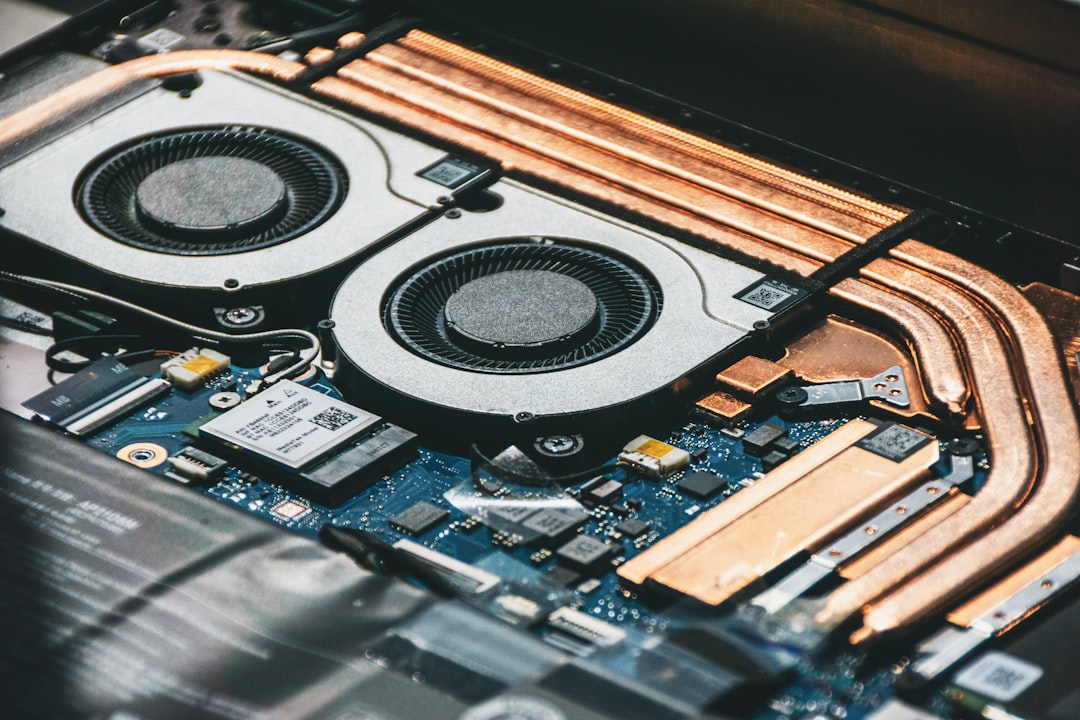
Dust acts like a blanket. It traps heat.
3. Old Thermal Paste
Inside your laptop is thermal paste. It helps move heat away from the processor.
After a few years, it dries out. When that happens, cooling becomes less effective.
4. Heavy Workloads
Gaming. Video editing. 3D design. These push your laptop hard.
Without good cooling, repeated heavy use can cause long-term damage.
5. Hot Environment
Using a laptop in a very hot room adds extra stress.
Laptops cool by pushing heat into the surrounding air. If the air is already hot, cooling becomes harder.
How to Confirm If Heat Caused the Damage
You can’t always see internal damage. But you can check temperatures.
Use temperature monitoring software. Look for CPU temperatures regularly above:
- 90°C (194°F) under load
- 50–60°C (122–140°F) while idle is normal
If your laptop often hits extreme temperatures, heat damage is possible.
A repair technician can also inspect:
- Motherboard discoloration
- Burn marks
- Warped plastic
- Failed components
Can Heat Damage Be Fixed?
Sometimes yes. Sometimes no.
It depends on what was affected.
- Dust problems? Cleaning can help.
- Old thermal paste? Reapplying it may restore cooling.
- Battery damage? Replace the battery.
- Motherboard damage? Often expensive to repair.
If key chips are damaged, repair costs may be high. In some cases, replacing the laptop makes more sense.
How to Prevent Heat Damage
Good news. Prevention is easy.
Use a Hard Surface
Always place your laptop on a desk or table. Avoid beds and couches.
Clean It Regularly
Blow compressed air into the vents every few months.
Use a Cooling Pad
Cooling pads add extra airflow. They are inexpensive and helpful.
Avoid Blocking Vents
Check where your vents are. Keep them clear.
Don’t Ignore Warning Signs
If it’s running hot, fix the issue early. Small fixes prevent big damage.
When to Seek Professional Help
Get professional repair if:
- It shuts down frequently
- You smell burning
- Screen shows heavy glitches
- Battery is swelling
- It crashes during basic tasks
The sooner you act, the better the outcome.
Final Thoughts
Laptops are designed to handle heat. But not endless heat.
If your machine runs hot once in a while, relax. That’s normal. But constant overheating is not.
Listen to your laptop. Loud fans. Random shutdowns. Strange smells. These are warning signs.
Heat damage usually builds slowly. You may not notice it at first. But small symptoms grow over time.
The good news? With proper care, most overheating issues are preventable.
Keep it clean. Keep it cool. And your laptop will stay happy for years.









