























Missing an alarm can be more than an inconvenience. It can mean being late for work, missing medication, overlooking school drop-off, or starting the day under unnecessary stress. If your phone alarm is not going off, the cause is usually not a mysterious hardware failure; it is often a setting, volume issue, app conflict, battery restriction, or software bug that can be checked methodically.
TLDR: If your alarm did not ring, first check that it is enabled, scheduled for the correct time and date, and set to the right AM or PM. Then confirm alarm volume, sound selection, silent or focus modes, Bluetooth audio routing, and battery optimization settings. If everything looks correct, update the Clock app and operating system, restart the phone, clear app cache if available, and test a new alarm before relying on it again.
Start With the Most Common Alarm Mistakes
Before assuming your phone is broken, review the basics carefully. Many alarm failures come from small configuration mistakes that are easy to overlook when setting an alarm quickly at night.
- Check AM and PM: A 6:30 alarm set for PM instead of AM will appear valid but will not help in the morning.
- Confirm the alarm is switched on: Some clock apps allow alarms to remain saved but disabled.
- Review repeat days: If the alarm is set only for weekdays, it may not ring on Saturday or Sunday. If it is set for one specific date, it may not repeat at all.
- Look for duplicate alarms: Multiple similar alarms can cause confusion, especially if one is enabled and another is not.
- Check the time zone: Travel, automatic time zone changes, or disabled network time settings can cause alarms to trigger unexpectedly or appear incorrect.
If you are troubleshooting after a missed alarm, create a new test alarm for two or three minutes from now. This gives you immediate confirmation about whether the problem is still active or was related to the original alarm setup.
Check Alarm Volume, Sound, and Vibration
One of the most frequent reasons an alarm seems not to go off is that it did trigger, but the sound was too quiet, muted, or routed somewhere unexpected. Alarm volume is often controlled separately from media volume, ringtone volume, or notification volume.
Open your phone’s sound settings and look specifically for Alarm volume. Raise it to a clearly audible level. Then open the Clock app, edit the alarm, and confirm that a real sound is selected. If the alarm sound is set to “None,” “Silent,” or a deleted custom audio file, the phone may show the alarm screen without making noise.
Also check vibration settings. Vibration alone may not wake a deep sleeper, especially if the phone is on a soft surface such as a bed, blanket, couch, or padded nightstand. For important alarms, use both sound and vibration when possible.
Silent Mode, Do Not Disturb, Focus, and Bedtime Settings
Modern phones include several modes designed to reduce interruptions: Silent Mode, Do Not Disturb, Sleep Mode, Focus Mode, Driving Mode, and Bedtime routines. These features are useful, but they can also affect alarms depending on the phone model, operating system version, and app settings.
On many devices, built-in Clock app alarms are allowed to ring even during Do Not Disturb. However, this is not universal for every device, third-party app, or custom manufacturer setting. Review the rules for your focus or quiet mode and make sure alarms are explicitly allowed.
- Open your phone’s Settings.
- Go to Sound, Notifications, Focus, or Do Not Disturb, depending on your device.
- Find the section for allowed interruptions.
- Make sure Alarms are permitted.
- Check any scheduled quiet modes that activate overnight.
Pay special attention to sleep schedules. Some phones automatically dim the screen, silence alerts, or change sound behavior during bedtime hours. If your alarm problem happens only in the morning, a sleep-related setting may be involved.
Bluetooth and External Audio Can Make Alarms Seem Silent
If your phone connects to wireless earbuds, a Bluetooth speaker, car audio, or a smart display, the alarm sound may play through that device instead of the phone speaker. This can be especially confusing if the connected device is in another room, turned down, or inside a case.
Before going to sleep, disconnect unnecessary Bluetooth devices or disable Bluetooth temporarily. You should also test whether your phone alarm rings through the phone speaker when headphones are connected. Behavior differs by device and operating system, so do not assume it will work the way you expect.
For critical wake-up alarms, the safest approach is to keep the phone disconnected from external audio and place it on a hard surface where the speaker is not blocked.
Battery Optimization May Stop Clock App Functions
Battery-saving systems are designed to reduce background activity, but aggressive optimization can interfere with apps that need to run reliably at a specific time. Built-in clock apps are usually protected, but third-party alarm apps can be restricted by battery saver, app sleep, background limits, or manufacturer-specific power management.
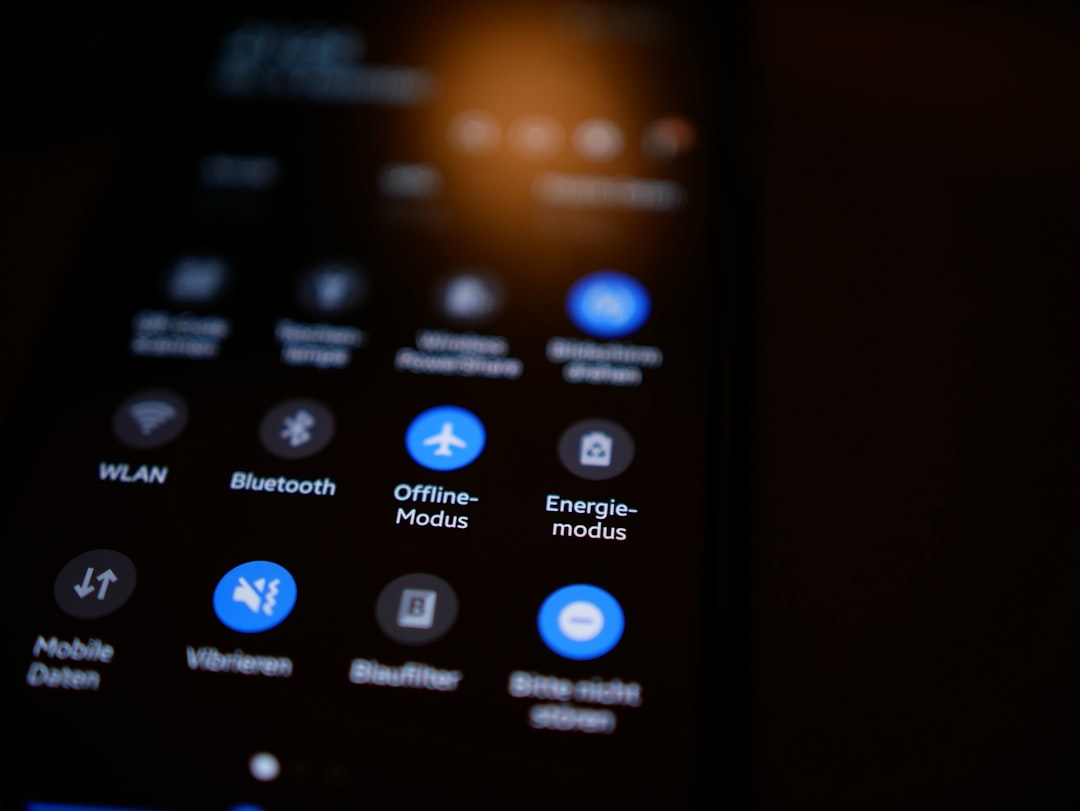
Check whether Battery Saver or Low Power Mode was active overnight. If so, turn it off temporarily and test the alarm again. For Android devices, open app settings for the Clock app or alarm app and look for options such as Battery, Unrestricted, Allow background activity, or Do not optimize. If you use a Samsung, Xiaomi, OnePlus, Oppo, Vivo, or similar device, also check any built-in “sleeping apps” or “deep optimization” features.
On iPhone, Apple’s built-in alarms are generally reliable under Low Power Mode, but app-based alarms from third-party apps may be limited if they rely on background activity. If reliability matters, use the native Clock app as your primary alarm and third-party alarm apps only as backups.
Update the Clock App and Operating System
Software bugs can affect alarm behavior. Clock apps, notification systems, audio services, and operating system scheduling features all need to work together. If any part is outdated or malfunctioning, alarms may become unreliable.
Install available updates for both the operating system and the Clock app. On Android, check the Google Play Store or your device manufacturer’s app store for Clock updates. On iPhone, the built-in Clock app is updated through iOS updates.
After updating, restart the phone. A restart clears temporary glitches, reloads background services, and often fixes issues where audio or notifications stop functioning correctly. This simple step is often overlooked, but it is one of the most practical fixes for unexplained alarm problems.
Clear Cache or Reset the Clock App
If you use an Android phone and the Clock app behaves strangely, clearing the cache may help. Cache files are temporary data used to make apps load faster, but corrupted cache data can cause unexpected behavior.
To clear cache on many Android devices:
- Open Settings.
- Go to Apps or Applications.
- Select Clock.
- Tap Storage.
- Choose Clear cache.
Be careful with Clear data or Reset app. This may delete saved alarms, timers, preferences, and clock settings. If you choose to reset the app, write down your important alarm times first and recreate them afterward.
Third-Party Alarm Apps Need Extra Attention
Third-party alarm apps can offer useful features such as math challenges, barcode scanning, sleep tracking, gradual wake-up sounds, or smart scheduling. However, they may be more vulnerable to permission problems, battery restrictions, notification limits, and operating system changes.
If a third-party alarm did not go off, verify that the app has all required permissions. It may need notification access, background activity permission, exact alarm permission on newer Android versions, and permission to appear on the lock screen. If the app depends on internet access, cloud sync, or wearable integration, those connections can introduce more failure points.
For important commitments, do not rely solely on a newly installed or unfamiliar alarm app. Test it during the day, confirm that it rings when the screen is locked, and use the built-in Clock app as a backup until you trust it.
Make Sure Notifications Are Not Blocked
Some alarm apps use notifications to display or trigger alarm behavior. If notifications are disabled, the alarm may be muted, delayed, or invisible. Built-in system alarms usually have special handling, but third-party apps often depend more heavily on notification permissions.
Open your notification settings and check the Clock app or alarm app. Make sure notifications are allowed, lock screen alerts are enabled, and the sound is not disabled for that notification category. On Android, notification categories can be very specific. An app may have general notifications enabled while its alarm-specific category is silenced.
Check Storage, Performance, and Device Health
A phone that is nearly out of storage, overheating, frequently freezing, or restarting overnight may not handle alarms reliably. Although alarms are basic functions, they still depend on the device operating normally.
- Free up storage: Keep at least several gigabytes available if possible.
- Remove unstable apps: Recently installed apps that control sound, automation, battery, or notifications may interfere with alarms.
- Check for overnight restarts: Some software updates restart a phone, and some devices require unlocking after restart before all functions return normally.
- Avoid overheating: Do not leave the phone under a pillow or blanket while charging.
A failing speaker can also make an alarm appear not to ring. Test the speaker with music, a ringtone, and a timer. If all sounds are faint, distorted, or absent, the issue may be hardware-related rather than an alarm setting.
Use Reliable Alarm Habits for Important Events
Once you fix the immediate issue, take steps to reduce the chance of another missed alarm. Use more than one alarm for important mornings, but avoid creating so many that you start dismissing them automatically. Set a primary alarm and a backup alarm five to ten minutes later.
Place the phone across the room so you must physically get up to turn it off. Keep it charged, but avoid burying it under bedding where the speaker can be muffled and heat can build up. If waking up is critical, consider using a separate physical alarm clock as a backup. A dedicated alarm clock is not affected by phone updates, Bluetooth routing, app crashes, or notification permissions.
When to Consider a Factory Reset or Repair
If alarms still fail after checking settings, volume, focus modes, battery restrictions, updates, cache, and app permissions, the problem may be deeper. At that point, back up your phone and consider resetting system settings. This is less drastic than a full factory reset and can correct misconfigured sound, notification, or app behavior.
A full factory reset should be a last resort because it erases personal data and requires careful backup. If the alarm problem continues even after a reset, or if the phone also has speaker, freezing, restart, or power issues, contact the device manufacturer, carrier, or a qualified repair provider.
Final Checklist Before You Trust the Alarm Again
- Alarm is enabled and set for the correct AM or PM.
- Repeat days and date settings are correct.
- Alarm volume is high enough.
- A real alarm tone is selected.
- Do Not Disturb or Focus Mode allows alarms.
- Bluetooth is disconnected or tested.
- Battery optimization is not restricting the Clock app.
- The phone and Clock app are updated.
- A short test alarm works while the phone is locked.
A missed alarm is frustrating, but it is usually fixable with a structured check of time settings, sound, focus modes, battery behavior, permissions, and software updates. Once the cause is corrected, test the alarm under real conditions: locked screen, normal overnight settings, expected volume, and the same charging setup you use while sleeping. For truly important events, use a backup alarm so one phone setting or software glitch cannot decide your morning.









