








Photo editing can feel like magic. You take a simple picture. You add light. You fix colors. You remove a random trash can. Boom. The photo looks ready for a magazine, a website, or your family group chat.
TLDR: Beginners should start with simple tools like Canva, Pixlr, Snapseed, or Adobe Lightroom. Professionals may prefer Adobe Photoshop, Capture One, Affinity Photo, or DxO PhotoLab. The best tool depends on your budget, your goals, and how much control you want. Start simple, learn the basics, then upgrade when you feel ready.
Why Photo Editing Tools Matter
A good camera helps. But editing makes a huge difference. Even great photos often need small fixes. Maybe the image is too dark. Maybe the sky looks dull. Maybe someone has red eyes. Maybe your lunch photo looks sad. Editing tools help with all of that.
Photo editing is not only for professionals. It is for anyone who wants better images. You might edit pictures for social media. You might make product photos for a small shop. You might retouch portraits. Or you might just want your vacation photos to look more like the vacation felt.
The great news is this. You do not need to be a tech wizard. Many modern tools are simple, fast, and fun. Some even use AI to do the hard parts for you.
What Beginners Should Look For
If you are new to photo editing, keep it simple. You do not need a tool with 500 buttons. That can feel like sitting in a spaceship with no pilot license.
Look for these features:
- Easy controls: Sliders are your friends. Brightness up. Contrast down. Simple.
- Good presets: Presets give your photo a quick style. One click can change the mood.
- Basic retouching: You should be able to remove spots, smooth skin, and crop images.
- Templates: These are great for social posts, flyers, and banners.
- Mobile support: Editing on your phone is useful and fast.
- Low cost: Free or cheap tools are perfect when you are learning.
What Professionals Should Look For
Professionals need more power. They want deep control. They need clean exports. They often work with large files and many images at once.
Pro tools should include:
- RAW editing: RAW files hold more image data. This gives more room to fix light and color.
- Layer support: Layers help you build complex edits without destroying the original image.
- Color grading: This is important for a polished style.
- Batch editing: Edit many photos at once. This saves hours.
- Advanced masking: Select skies, faces, backgrounds, or objects with precision.
- Professional export tools: Needed for print, web, ads, and client work.
1. Adobe Lightroom
Best for: Beginners, photographers, content creators, and professionals.
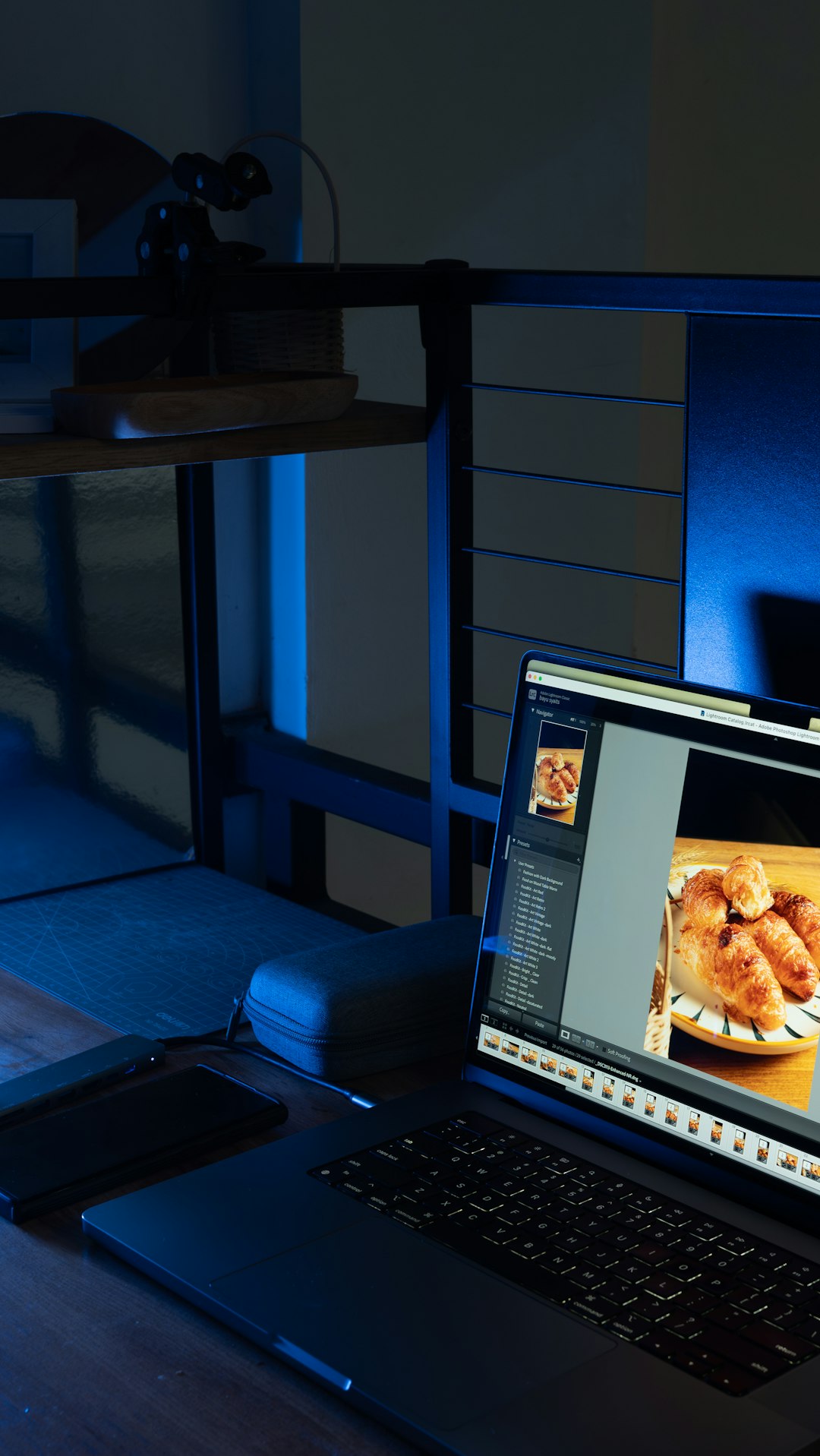
Adobe Lightroom is one of the best all-around photo editing tools. It is clean. It is powerful. It works on desktop and mobile. It is especially good for fixing light, color, sharpness, and shadows.
Lightroom uses simple sliders. This makes it friendly for beginners. But it also has advanced tools. Pros love it for RAW editing and batch editing. You can edit one photo and apply the same look to hundreds more.
Its presets are also very popular. Want a warm travel look? Click. Want a moody film look? Click. Want your food photo to stop looking like cafeteria soup? Click again.
Pros:
- Easy interface.
- Great mobile app.
- Strong RAW editing.
- Excellent presets.
- Fast batch editing.
Cons:
- Requires a subscription.
- Not ideal for complex graphic edits.
2. Adobe Photoshop
Best for: Professionals, designers, retouchers, and serious hobbyists.
Photoshop is the giant of photo editing. It can do almost anything. Want to remove a person from the background? Yes. Want to change the sky? Yes. Want to turn your dog into a space captain? Also yes.
Photoshop is famous for layers, masks, selection tools, and retouching. It is used by photographers, designers, artists, and marketing teams. It is not the easiest tool at first. But it is worth learning if you want full creative control.
Newer AI tools also make Photoshop faster. You can fill empty areas. Remove objects. Expand images. Create new background elements. It feels a little like asking a robot assistant to clean your photo.
Pros:
- Extremely powerful.
- Best-in-class retouching.
- Great for layers and composites.
- Strong AI features.
- Industry standard.
Cons:
- Can feel complex for beginners.
- Subscription cost can add up.
3. Canva
Best for: Beginners, social media creators, small businesses, and quick designs.
Canva is not a classic photo editor like Photoshop. But it is amazing for simple edits and visual content. It is perfect if you want to make Instagram posts, YouTube thumbnails, posters, flyers, or product graphics.
The best thing about Canva is how easy it feels. You drag. You drop. You resize. You add text. You use templates. Your design starts looking good before you even know what happened.
Canva has photo filters, background remover tools, crop tools, and basic adjustments. It is great for people who do not want to learn complicated software.
Pros:
- Very easy to use.
- Huge template library.
- Great for social media.
- Works in a browser.
- Useful free plan.
Cons:
- Not ideal for advanced photo retouching.
- Less control than pro editing apps.
4. Affinity Photo
Best for: Serious hobbyists, professionals, and people who dislike subscriptions.
Affinity Photo is a strong Photoshop alternative. It has layers, masks, retouching tools, RAW editing, and advanced effects. It is powerful, but it costs less over time because it is usually sold as a one-time purchase.
This tool is great if you want professional features without a monthly bill. It can handle complex edits, detailed retouching, and image compositing. It may take time to learn, but it is very capable.
Pros:
- No monthly subscription in many cases.
- Powerful professional tools.
- Great layer support.
- Good for retouching and creative edits.
Cons:
- Not as widely used as Photoshop.
- Learning curve for total beginners.
5. Capture One
Best for: Professional photographers and studio work.
Capture One is a favorite among many pro photographers. It is known for excellent color control. Skin tones look beautiful. Product photos look clean. Studio images look sharp and polished.
It is also great for tethered shooting. That means you can connect your camera to your computer and see photos appear as you shoot. This is very useful in studios.
Capture One is not the simplest tool. But for pros who care deeply about image quality, it is a serious choice.
Pros:
- Excellent color tools.
- Great for RAW files.
- Strong tethered shooting.
- Professional workflow features.
Cons:
- More expensive than some options.
- Can feel advanced for beginners.
6. Snapseed
Best for: Beginners and mobile photographers.
Snapseed is a free mobile photo editing app from Google. It is simple, quick, and surprisingly powerful. If you edit photos on your phone, you should try it.
It has tools for brightness, contrast, crop, healing, curves, and selective edits. The selective edit tool is especially fun. You can brighten one part of a photo without changing the whole image.
Snapseed is great for travel photos, food shots, selfies, and everyday edits. It is not built for heavy professional work. But for a free phone app, it punches way above its weight.
Pros:
- Free.
- Easy to use.
- Great mobile controls.
- Good selective editing.
Cons:
- Mobile only.
- Not built for large professional workflows.
7. Pixlr
Best for: Beginners, students, and quick browser edits.
Pixlr is a browser-based photo editor. That means you do not need to install heavy software. Open it, upload a photo, and start editing.
Pixlr offers simple tools and more advanced options. You can crop, adjust color, add effects, remove backgrounds, and work with layers. It is a nice bridge between super-simple tools and pro apps.
It is especially useful when you need a quick edit on a computer that is not yours. No downloads. No drama.
Pros:
- Works in a browser.
- Beginner friendly.
- Has free options.
- Good for quick edits.
Cons:
- Needs internet access.
- Not as powerful as full desktop software.
8. DxO PhotoLab
Best for: Photographers who want sharp, clean RAW images.
DxO PhotoLab is loved for its image quality. Its noise reduction is excellent. This is useful when photos are taken in low light. It can make grainy images look cleaner while keeping details sharp.
DxO is also strong at lens corrections. It can fix distortion, softness, and other camera issues. This makes it great for landscape, travel, wildlife, and event photographers.
Pros:
- Excellent noise reduction.
- Great lens corrections.
- Strong RAW processing.
- High-quality results.
Cons:
- Less useful for graphic design.
- May feel technical for new users.
9. Luminar Neo
Best for: Beginners and creators who want fast AI editing.
Luminar Neo is built around smart AI tools. You can enhance skies, fix portraits, add light, and improve colors quickly. It is fun because you can get dramatic results with very little effort.
This makes it great for beginners. It is also useful for professionals who want to save time. But be careful. AI effects can be too strong. A little magic is good. Too much magic can make your photo look like a fantasy postcard from another planet.
Pros:
- Easy AI tools.
- Fast results.
- Great for creative looks.
- Friendly interface.
Cons:
- Some edits can look unnatural.
- Less precise than traditional pro tools.
Best Tools by User Type
Still not sure which tool to choose? Here is a simple guide.
- Total beginner: Canva, Snapseed, or Pixlr.
- Phone photographer: Snapseed or Lightroom Mobile.
- Social media creator: Canva or Lightroom.
- Professional photographer: Lightroom, Capture One, or DxO PhotoLab.
- Advanced retoucher: Photoshop or Affinity Photo.
- AI fan: Luminar Neo or Photoshop.
- Budget-conscious editor: Snapseed, Pixlr, or Affinity Photo.
Free vs Paid Photo Editing Tools
Free tools are great for learning. They help you understand the basics. You can crop, brighten, adjust colors, and add filters without spending money.
Paid tools usually offer more control. They handle bigger files better. They also include pro features like RAW editing, advanced masking, batch exports, and better color tools.
If you are just starting, use a free or low-cost tool. Once you know what you need, upgrade. Do not buy the most advanced tool on day one. That is like buying a race car before learning how to park.
Simple Editing Tips for Better Photos
No matter which tool you use, the basics matter most. Try these easy tips:
- Crop first: Remove empty space. Focus on the subject.
- Fix exposure: Make the photo brighter or darker as needed.
- Adjust contrast: Add depth, but do not overdo it.
- Check white balance: Make sure colors do not look too blue or too yellow.
- Use saturation carefully: Bright colors are fun. Neon skin is not.
- Sharpen a little: Too much sharpening can look crunchy.
- Save a copy: Keep the original file safe.
Final Thoughts
The best photo editing tool is the one you will actually use. If a tool feels easy and fun, start there. You can always move to a more advanced app later.
For most beginners, Canva, Snapseed, Pixlr, and Lightroom are friendly choices. For professionals, Photoshop, Capture One, Affinity Photo, and DxO PhotoLab offer serious power.
Remember this. Great editing is not about pushing every slider to 100. It is about making the photo feel right. Keep it simple. Have fun. And if you remove a photobombing pigeon from your best shot, celebrate. That is art.