









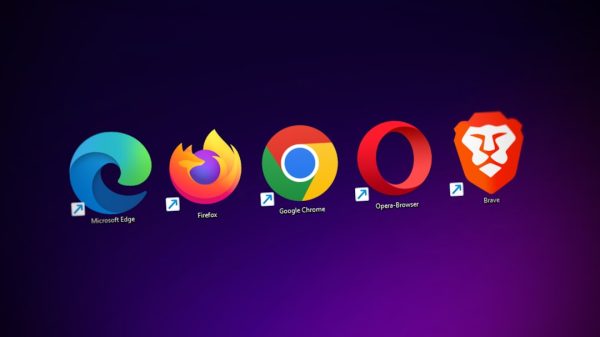














Your default browser is the app that opens when you tap a link. It is the browser your device grabs first. Maybe it is Edge. Maybe it is Safari. Maybe it is Chrome. But you are the boss here. You can pick the browser you like and tell every device, “Use this one, please.”
TLDR: You can change your default browser in Windows 11, macOS, and Android in just a few steps. Install your favorite browser first, then set it as the default in system settings. There is no magic “change it everywhere” button, so you need to do it on each device. Once it is done, links will open in the browser you chose.
Why Change Your Default Browser?
A browser is like your internet car. Some are fast. Some feel comfy. Some have great privacy tools. Some work better with your bookmarks, passwords, and extensions.
You may want to change your default browser because:
- You like Chrome for Google services.
- You like Firefox for privacy and control.
- You like Edge for Windows features.
- You like Safari for Apple devices and battery life.
- You like Brave, Opera, or another browser for special tools.
The best browser is the one that makes your day easier. Not the one your device picked for you.
Good news: changing it is not scary. No wizard hat needed. No secret code. Just a few clicks and taps.
Before You Start
First, install the browser you want to use. Your device cannot choose an app that is not there.
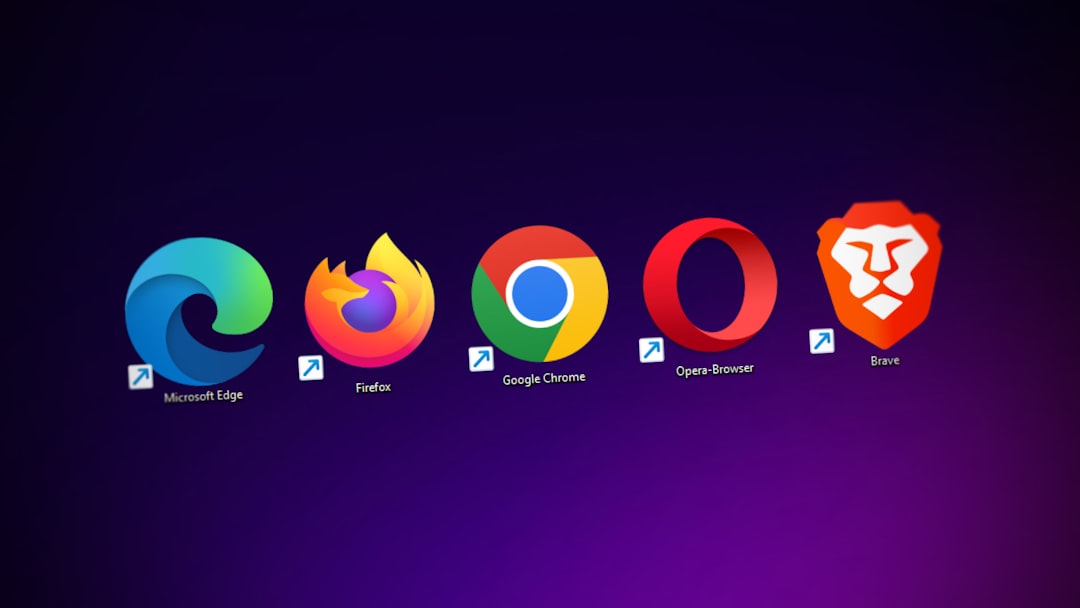
Here are common browser choices:
- Google Chrome
- Mozilla Firefox
- Microsoft Edge
- Safari
- Brave
- Opera
- Vivaldi
After installing it, open it once. This helps the app finish setup. It may ask if you want to make it the default browser. You can say yes. If that works, great. If not, follow the steps below.
How to Change the Default Browser in Windows 11
Windows 11 likes Microsoft Edge. Edge is a solid browser. But if you want something else, you can switch.
Follow these simple steps:
- Click the Start button.
- Open Settings.
- Click Apps on the left side.
- Click Default apps.
- Scroll down or use the search box.
- Find the browser you want, like Chrome or Firefox.
- Click that browser.
- Click Set default.
That is the easy path. Windows should now use your chosen browser for web links.
If you do not see Set default, look for file and link types. These may include:
- .htm
- .html
- HTTP
- HTTPS
Set those to your favorite browser. The big ones are HTTP and HTTPS. Those control most normal links.
Quick tip: If links still open in Edge, restart your computer. Windows sometimes needs a tiny nap before it remembers your choice.
How to Change the Default Browser in macOS
On a Mac, Safari is the built-in browser. It is smooth. It is fast. It plays nicely with Apple things. But you can choose another browser if you want.
The steps depend a little on your macOS version. Do not worry. Both ways are easy.
For Newer macOS Versions
Use these steps on recent versions of macOS:
- Click the Apple menu in the top-left corner.
- Click System Settings.
- Click Desktop & Dock.
- Scroll until you see Default web browser.
- Click the menu beside it.
- Choose your browser.
That is it. Your Mac now knows which browser to use for links.
For Older macOS Versions
If your Mac uses an older version, try this:
- Click the Apple menu.
- Open System Preferences.
- Click General.
- Find Default web browser.
- Pick your browser from the list.
If the browser is missing from the list, install it first. Then open it once. After that, check the list again.
How to Change the Default Browser on Android
Android is friendly with browser choices. Chrome is common on many Android phones. Samsung Internet is common on Samsung phones. But you can pick another one.
Menus can look different on each Android phone. A Pixel is not exactly like a Samsung. A OnePlus is not exactly like a Motorola. But the idea is the same.
General Android Steps
- Open Settings.
- Tap Apps.
- Tap Default apps.
- Tap Browser app.
- Choose your browser.
Done. Now links should open in that browser.
Samsung Android Steps
On Samsung phones, try this path:
- Open Settings.
- Tap Apps.
- Tap Choose default apps.
- Tap Browser app.
- Select the browser you want.
Small note: Some apps open links inside their own mini browser. For example, social apps may do this. That does not always mean your default setting is broken. It just means the app is being bossy.
Changing the Browser Across All Devices
Here is the key thing. You cannot usually change the default browser on every device from one single button. Windows does not control your Mac. Your Mac does not control your Android phone. Your Android phone is busy being Android.
So you need to change the default browser on each device. Think of it like giving each device the same instruction.
- On your Windows 11 PC, use Default apps.
- On your Mac, use System Settings.
- On your Android phone or tablet, use Default apps.
Once you do that, your web life feels more connected.
For an even smoother setup, sign in to the same browser account on each device. This can sync your:
- Bookmarks
- Passwords
- History
- Open tabs
- Extensions, in some cases
- Autofill details
For example, if you use Chrome, sign in with your Google account. If you use Firefox, sign in with a Firefox account. If you use Edge, sign in with a Microsoft account.
This does not set the default browser by itself. But it makes your browser feel the same on all your devices.
What If the Wrong Browser Still Opens?
Sometimes devices are stubborn. Like a cat sitting on your keyboard. If the wrong browser still opens, try these fixes.
1. Restart the Device
This sounds boring. It works a lot. Restart your computer, phone, or tablet. Then try a link again.
2. Update the Browser
Open the app store or browser menu. Check for updates. Old versions can act strange.
3. Check the Default Setting Again
Go back to the default apps screen. Make sure your browser is still selected. Updates can sometimes reset things.
4. Look Inside the App Opening the Link
Some apps have their own link settings. Look for options like:
- Open links externally
- Use external browser
- Open in default browser
If you see one, turn it on.
5. Reinstall the Browser
If nothing works, uninstall and reinstall the browser. Then set it as default again. It is the digital version of “turn it off and on again,” but with extra sparkle.
Which Browser Should You Choose?
There is no single perfect choice. Each browser has a personality.
- Chrome: Great for Google users. Huge extension library.
- Firefox: Great for privacy fans. Very customizable.
- Edge: Great for Windows users. Fast and feature-rich.
- Safari: Great for Mac users. Battery friendly and clean.
- Brave: Great for people who want built-in ad blocking.
- Opera: Great for extra built-in tools.
Try a few. See what feels right. Browsers are free, so you can test them like snacks at a party.
Privacy and Safety Tips
Changing your browser is also a good time to check your safety settings.
- Turn on automatic updates.
- Use a password manager.
- Turn on two-factor authentication for important accounts.
- Review your extension list.
- Remove extensions you do not use.
- Use private browsing when needed.
Do not install random browser extensions. Some are useful. Some are sneaky. If an extension promises to make your computer “300% faster,” raise one eyebrow.
Quick Step Recap
Here is the speedy version. Keep it handy.
- Windows 11: Settings → Apps → Default apps → Choose browser → Set default.
- macOS: System Settings → Desktop & Dock → Default web browser → Choose browser.
- Android: Settings → Apps → Default apps → Browser app → Choose browser.
If your menu names are a little different, do not panic. Search settings for default apps or browser. That usually takes you right to the treasure chest.
Final Thoughts
Your default browser should match how you use the web. It should feel fast. It should feel simple. It should help you get where you want to go.
Windows 11, macOS, and Android all let you change it. The steps are short. The result is big. Once you set your favorite browser on each device, links open where you expect them to open.
That means fewer surprises. Fewer “why did Edge open?” moments. Fewer tiny tech headaches.
So go ahead. Pick your browser. Set it as the default. Sync your bookmarks. Then enjoy the internet in the browser you actually like.









