























Did your mouse stop working? Or maybe you’re just curious about other ways to control your computer. Either way, using your keyboard as a mouse can be really handy—and a little fun!
TLDR: Too Long, Didn’t Read
You can move your mouse and click with your keyboard using a built-in feature called Mouse Keys. It works on both Windows and Mac. You use the numeric keypad to move the cursor, click, and drag. It’s like using a joystick made of keys!
What Are Mouse Keys?
Mouse Keys is a special feature that turns your keyboard into a mouse. It’s designed to help people who have trouble using a regular mouse or trackpad.
Once you turn it on, certain keys start moving the mouse pointer. Other keys do things like left click, right click, and even drag items around.
Why Use a Keyboard Instead of a Mouse?
- Your mouse is broken or missing
- You like cool keyboard tricks
- You want to help someone with accessibility needs
- You spilled soda on your trackpad (oops)
How to Turn On Mouse Keys
For Windows Users
- Press Windows Key + I to open Settings
- Go to Accessibility (or Ease of Access in some versions)
- Click on Mouse under the Interaction section
- Switch on Mouse Keys
Or use this quick shortcut:
- Press Left Alt + Left Shift + Num Lock
- A pop-up will ask if you want to turn on Mouse Keys
- Click Yes or just press Enter
For Mac Users
- Open System Settings (or System Preferences on older Macs)
- Click on Accessibility
- Select Pointer Control
- Choose the Alternate Control Methods tab
- Turn on Mouse Keys
How to Control the Pointer With Your Keyboard
Once Mouse Keys is on, your numeric keypad becomes your new best friend.
Here’s what each key does:
| Key | What It Does |
|---|---|
| 8 | Move cursor up |
| 2 | Move cursor down |
| 4 | Move cursor left |
| 6 | Move cursor right |
| 7 | Move cursor up-left |
| 9 | Move cursor up-right |
| 1 | Move cursor down-left |
| 3 | Move cursor down-right |
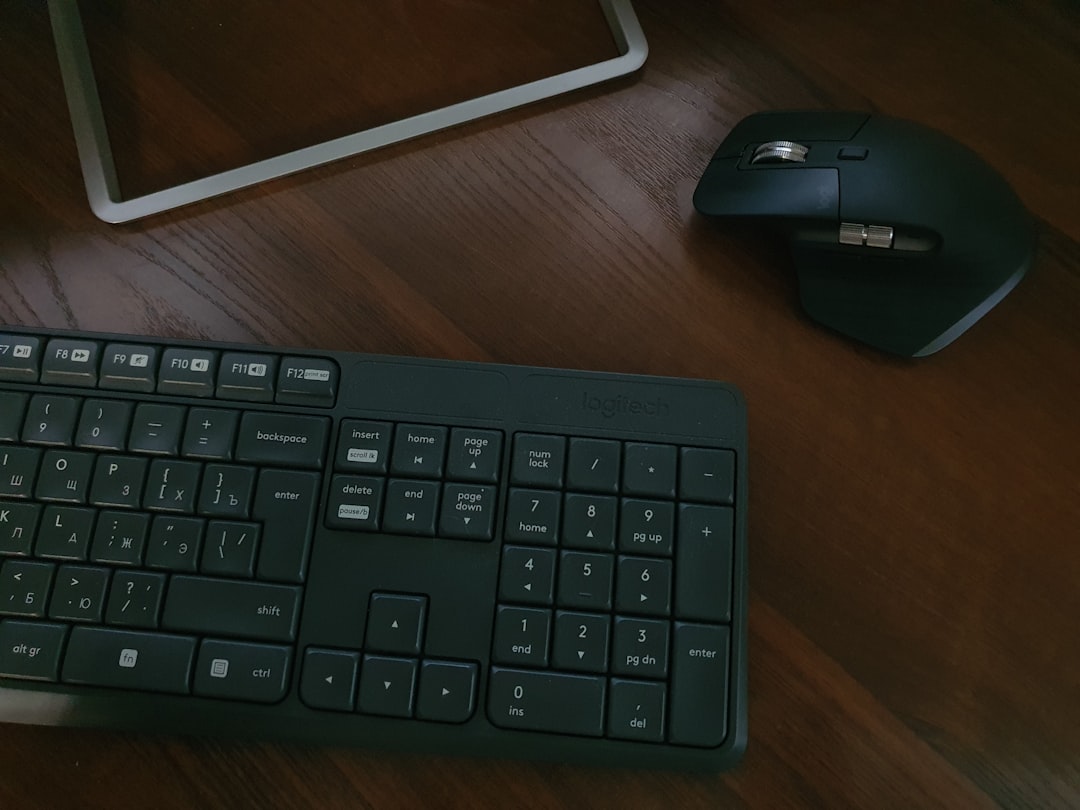
If you’re using a laptop without a number pad, don’t worry! Some laptops simulate it by holding Function (Fn) and using alternative keys. Or you can use an on-screen keyboard!
Clicking with Your Keyboard
You can do both left and right clicks with Mouse Keys. Here’s how:
For Windows
- 5 = Click
- / = Select left click mode
- * = Select right click mode
- – = Select double-click mode
To right-click:
- Press *
- Then press 5 for the click
For Mac
- Use the 5 key (or I and surrounding keys if using a laptop) to click
- Hold Control while clicking for a right-click
Dragging and Dropping with Mouse Keys
Yes, you can even drag stuff around your screen!
Here’s how:
- Press 0 to start dragging
- Move the object using the arrow keys
- Press . to drop it
Voila! You just mastered drag and drop—with a keyboard!
Tips to Make It Easier
Here are some quick tips to boost your Mouse Key magic:
- Go into settings and adjust the pointer speed
- Practice on icons or folders first
- If you’re using it often, consider mapping shortcuts
- Don’t forget to turn it off when you’re done—unless you like it that way!
Fun fact!
People have actually played games using only Mouse Keys. It’s not easy—but it’s possible!
When to Use This Trick
There are some pretty specific scenarios where Mouse Keys shine:
- Your touchpad stopped working and you need to finish your homework
- You’re controlling a computer remotely and want to avoid lag from the mouse
- You’re writing a code simulator that only uses keystrokes
- You’re creating a keyboard-only challenge for fun
How to Turn It Off
Done being a keyboard ninja? Here’s how to turn off Mouse Keys:
Windows
- Press Left Alt + Left Shift + Num Lock again
- Say “No” to the pop-up, or just disable from Settings
Mac
- Go back to Accessibility settings
- Under Pointer Control, toggle off Mouse Keys
Things to Watch Out For
Like all tools, Mouse Keys has a few quirks:
- If Num Lock is off, Mouse Keys may not work
- Some keyboards don’t show numbers clearly—look closely!
- You might accidentally leave it on and wonder why your number keys act weird
Final Thoughts
Using your keyboard as a mouse isn’t hard. In fact, it can be surprisingly fun.
It’s a great way to get things done when your normal pointing devices fail. Just remember the keys, take a little time to practice, and you’ll impress your friends in no time.
So try it out next time your mouse gets lost or goes out of juice!
Happy keyboard-clicking!









