




















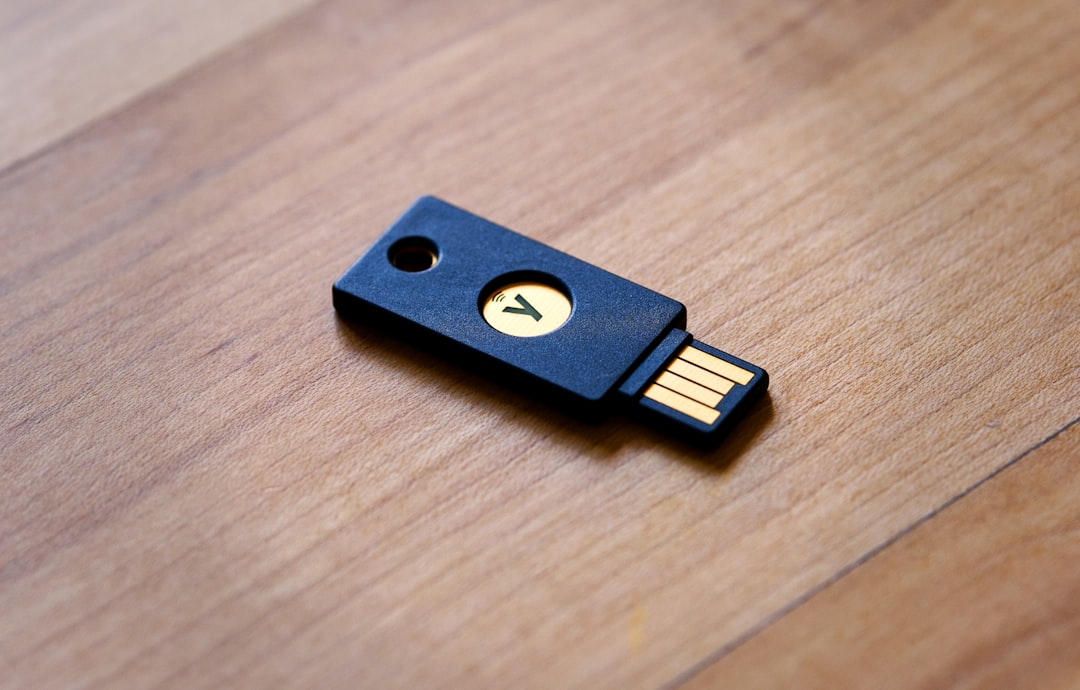
As the digital world continues to evolve, so do the methods used to protect our sensitive information. The traditional username and password combination has long served as a baseline for digital security, but it’s increasingly being replaced by more secure alternatives like passkeys. Microsoft, staying at the forefront of digital security innovation, now supports passkeys that you can use with a USB security key. This guide walks users through how to get a Passkey USB drive and how to use it effectively with their Microsoft Account for enhanced protection.
TL;DR:
To use a USB passkey with your Microsoft Account, first purchase a USB security key that supports FIDO2, such as those from brands like YubiKey or Feitian. Once you have the USB key, log into your Microsoft Account security settings and register the device as a passkey. These keys add an extra layer of security by requiring physical access to the device when logging in. Setup is quick and significantly improves your account’s protection from phishing and unauthorized access.
What Is a Passkey and Why Choose USB?
A passkey is a modern authentication credential that replaces the need for a password. Microsoft supports passkeys as part of their passwordless strategy, allowing users to log in more securely. Passkeys can be stored on various platforms, including mobile devices, PCs, or physical security keys.
Using a USB security key as your passkey offers several advantages:
- Physical Security: The key must be physically present to log in, reducing the risk of remote hacking.
- Phishing Resistance: USB keys protect against phishing by ensuring login credentials aren’t shared with fake sites.
- Portability: USB keys are small, easy to carry, and don’t require batteries or charging.
Step-by-Step Guide to Setting Up a Passkey USB Drive
Step 1: Choose the Right USB Security Key
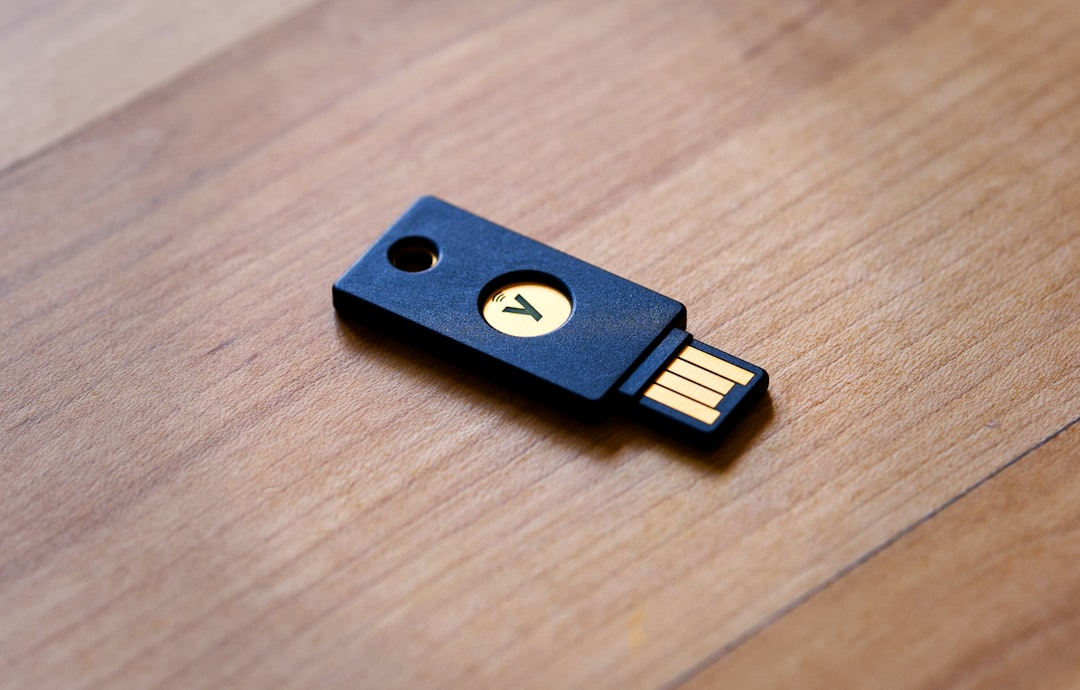
Not all USB keys are built the same. You’ll want a security key that supports the FIDO2 authentication standard, which is required for passkey functionality with Microsoft. Here are some popular and reliable brands:
- YubiKey by Yubico
- Feitian
- SoloKey
Look for features such as:
- USB-A or USB-C compatibility
- NFC for mobile device pairing (optional)
- Support for multiple accounts
Step 2: Purchase Your USB Key
You can buy USB security keys from several online retailers including:
Make sure to verify that the key you purchase explicitly supports FIDO2/WebAuthn for Microsoft Accounts.
Step 3: Register Your USB Passkey with Microsoft
Once you have your USB key, setting it up with your Microsoft Account involves a few straightforward steps:
- Visit account.microsoft.com/security and log in to your account.
- Under the Advanced Security Options, locate and select Passkeys.
- Select Add a New Passkey, then choose Security Key.
- Insert your USB key when prompted and follow the on-screen instructions to register it.
- You may be asked to set a PIN and touch the key’s sensor to confirm ownership.
Once registered, your USB key will appear under your list of security credentials and can be used to sign into your Microsoft Account on compatible devices and browsers.
Step 4: Test the Setup
To verify everything is working:
- Log out of your Microsoft Account.
- Attempt to sign in again using the Sign in with a security key option.
- Insert your USB key and confirm authentication.
If successful, you’ll be logged in without needing a password at all.
Tips for Using and Managing Your USB Passkey
Backup Your Security: You should consider purchasing a backup USB key or registering other sign-in methods (like the Microsoft Authenticator App or another device’s passkey) in case your main USB key is lost or damaged.
Label and Store Safely: Use a keychain or label to keep track of your passkey. Avoid placing it somewhere it can be forgotten, thrown out, or water-damaged.
Update Account Recovery Options: Always keep your phone number and backup email updated in your Microsoft Account settings. This ensures you won’t get locked out unexpectedly.
Why This Matters in 2024 and Beyond
With increasing data breaches and phishing attacks, relying on passwords alone puts accounts at high risk. Passkeys backed by USB security keys represent a major leap in digital protection, virtually eliminating the risks associated with phishing and brute-force attacks.
In addition, Microsoft and other tech giants including Apple and Google are pushing toward full support of passwordless login experiences, making now the perfect time to transition before traditional logins become obsolete.
Frequently Asked Questions (FAQ)
Do all USB drives support passkeys?
No. Only USB devices that specifically support the FIDO2 protocol work as passkeys. Regular storage USB drives cannot be used for this purpose.
Can I use the same USB key for multiple accounts?
Yes. Most FIDO2 keys can manage multiple credentials at once and can be used across different services including Microsoft, Google, GitHub, and more.
What happens if I lose my USB key?
If you lose access to your key, you can still sign in using alternative recovery methods set up in your Microsoft Account. It’s highly recommended to register a backup key and keep account recovery options up to date.
Is setting up a USB passkey free?
While there’s no fee from Microsoft to enable passkey authentication, you’ll need to purchase the physical USB key, which typically ranges from $25 to $60 depending on the model and features.
Do USB passkeys work with mobile devices?
Some USB keys support NFC or have USB-C connectors compatible with Android and modern iOS devices. Check product specifications for mobile support details.
Is this method better than two-factor authentication?
In many ways, yes. Passkeys offer enhanced protection by eliminating the passcode/PIN vulnerability common with SMS or app-based 2FA. That said, using both together can provide layered security.
Conclusion
Switching to a USB passkey for your Microsoft Account is one of the most proactive moves you can make to safeguard your digital identity. With just a one-time purchase and simple setup, users can enjoy faster, easier, and more secure logins. As technology moves quickly toward passwordless authentication across platforms, those who make the leap now will be better prepared—and better protected—in the digital future.









