





















If you’re a proud owner of the Nintendo Switch 2 and have encountered the dreaded Error Code 2137-8007, you’re not alone. This error generally indicates trouble connecting to the internet, which can be frustrating when you’re trying to download a game update, access online multiplayer, or browse the eShop. In this guide, we’ll break down what this error means, its common causes, and — most importantly — how to fix it in just a few easy steps.
TL;DR: Error Code 2137-8007 on the Nintendo Switch 2 is primarily a network-related issue. It usually stems from unstable Wi-Fi, server downtime, or incorrect network settings. To fix it, try restarting your router, checking Nintendo’s server status, or adjusting DNS settings. Advanced solutions include updating firmware or using a wired connection for improved stability.
What Does Error Code 2137-8007 Mean?
This error indicates that your Switch 2 is having difficulty establishing an internet connection through its wireless network. The console is either unable to reach Nintendo’s servers or has issues with DNS (Domain Name System) resolution.
According to Nintendo’s official troubleshooting database, this error falls under the category of communication errors, often linked to poor Wi-Fi signals or temporary server outages.
Common Causes of Error Code 2137-8007
Here are the most frequent culprits behind this error:
- Weak or unstable Wi-Fi signal
- Router configuration issues
- Incorrect DNS settings
- Nintendo server downtime or maintenance
- Firewall restrictions or parental control interference
Step-by-Step Solutions to Fix Error Code 2137-8007
Below is a list of reliable solutions, starting from the simplest and moving on to more advanced fixes. Follow the list in order for the best chances of resolving the problem quickly.
1. Restart Your Console and Router
Sometimes a simple reboot does wonders. To do this:
- Power off your Nintendo Switch 2 completely.
- Unplug your router and modem from power for at least 30 seconds.
- Plug in your modem and router again, then turn on your Switch 2.
- Test your connection via System Settings > Internet > Test Connection.
This alone resolves connection errors for many users.
2. Check Nintendo’s Server Status
Visit the official Nintendo Server Status page to see if there’s any downtime or scheduled maintenance. If the servers are down, your best course of action is to be patient and try again later.
3. Relocate Your Switch or Router for Better Signal
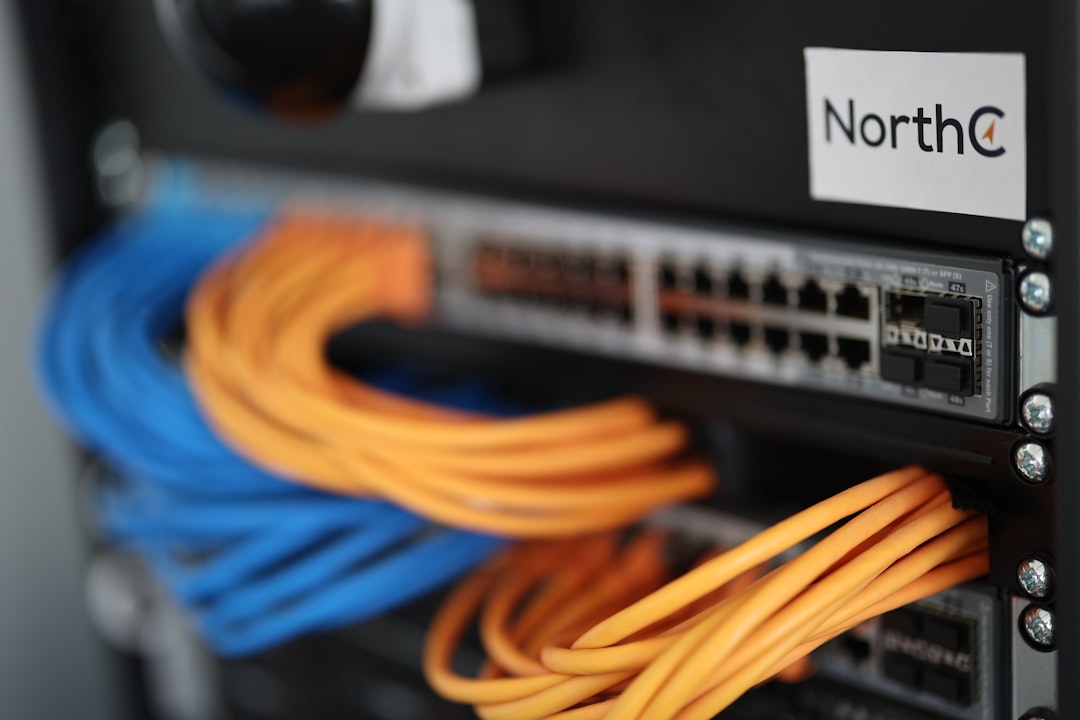
If your Switch is far from your router or blocked by thick walls, try moving them closer together. Keep the following in mind:
- Avoid putting the console near microwaves or cordless phones.
- Raise your router off the floor and place it in a central location.
- Switch to the 5GHz band if your router supports dual-band and your Switch 2 model supports it.
4. Manually Set Your DNS
Sometimes the automatic DNS settings don’t play well with your router or ISP. To manually configure DNS settings:
- Go to System Settings > Internet > Internet Settings.
- Select your active connection, then choose Change Settings.
- Navigate to DNS Settings and switch from Automatic to Manual.
- Enter the following DNS values:
- Primary DNS: 8.8.8.8
- Secondary DNS: 8.8.4.4
- Save and test the connection.
These DNS addresses are for Google’s public DNS servers, known for their reliability and speed.
5. Update Your Switch 2 Firmware
Outdated firmware can sometimes create connectivity issues. To check for an update:
- Head to System Settings.
- Scroll to System, then select System Update.
If an update is available, follow the on-screen prompts to install it.
6. Use a Wired Connection (Optional)
If Wi-Fi continues to be unstable, consider using a wired Ethernet connection. To do this, you’ll need a compatible USB-C LAN adapter.
Once connected via LAN:
- Go to Internet Settings.
- Set up a new wired connection.
- Test the connection after setup.
A wired connection can drastically reduce latency and connection failures for online play and downloads.
7. Adjust Router Firewall or Parental Controls
Sometimes router security settings or parental controls block necessary connections. Temporarily disable or adjust the following:
- Firewall settings
- Parental controls (on both the console and router)
- MAC address filtering (ensure your Switch’s MAC isn’t being blocked)
Be sure to write down original settings before making changes, just in case you need to revert them.
Additional Tips for Preventing Future Errors
If you’ve successfully resolved the error, you may want to take steps to prevent it from happening again. Here are some best practices:
- Keep your console firmware up to date
- Avoid downloading large updates or games during peak internet usage times
- Regularly restart your router to refresh its connection
- Disable bandwidth-heavy apps or devices on your network during gaming sessions
When to Contact Nintendo Support
If none of the above solutions work, it’s time to reach out to Nintendo’s customer support. You can contact them via:
- Their official support website
- Twitter account @NintendoAmerica
- Your regional Nintendo service center
Have relevant info handy such as your Nintendo account details, console serial number, internet provider, and a full explanation of the steps you’ve already taken.
Conclusion
Getting hit with Error 2137-8007 on the Nintendo Switch 2 can definitely put a damper on your gaming mood, but don’t worry — it’s usually a straightforward fix. From rebooting your router to tweaking DNS settings and trying a wired connection, one of these methods is likely to solve your issue in no time. With the right setup and some preventative care, your Switch 2 should stay connected and ready for online action without a hitch.
Happy gaming — and here’s to a smooth, uninterrupted online experience on your Switch 2!









