





















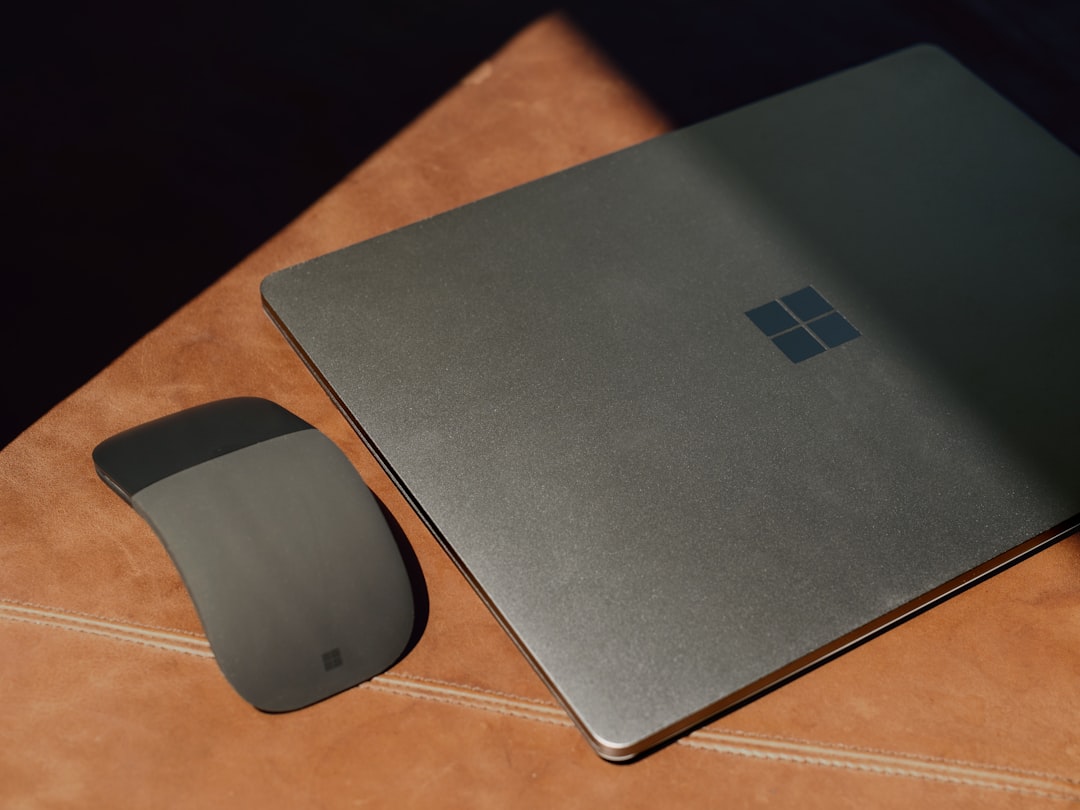
Changing your laptop password through your Microsoft Account is not only a smart move to enhance your digital security, but it’s also necessary if you’ve forgotten your existing Windows login credentials and use a Microsoft login to access your device. As our lives become increasingly integrated with digital services, maintaining the integrity and security of our access points—especially those tied to sensitive work or personal data—is absolutely essential.
TL;DR: If your Windows laptop uses a Microsoft Account to log in, you can change your password by navigating to the Microsoft Account portal online. Once changed, your laptop will automatically require the new password next time you sign in. This method works even if you forget your existing password, making it both convenient and secure. Always remember to use a strong, unique password to prevent unauthorized access to your personal data.
Why It’s Important to Change Your Microsoft Account Password
Your Microsoft Account is the gateway to not only your laptop but also your OneDrive cloud storage, Outlook, Office 365, Xbox Live, and other Microsoft services. If someone gains access to your account, they can potentially access all these platforms and the sensitive data they contain. Regularly updating your password or reacting promptly to suspicious activity by changing it could very well prevent unauthorized intrusions.
How Do You Know the Password Needs Changing?
You might need to change your Microsoft Account password for several reasons:
- You suspect that someone else knows your current password.
- Your account has been flagged for suspicious activity by Microsoft.
- You simply want to improve your password strength.
- You’ve forgotten your current password and are unable to log in.
Steps to Change Your Microsoft Account Password
Assuming you can still access your Microsoft Account, here is how you can update your password safely and effectively:
- Open your browser and navigate to the official Microsoft account website: https://account.microsoft.com/.
- Log in using your current email and password.
- Once in your account dashboard, click on Security tab in the upper menu.
- Scroll down and look for the section titled Password Security, then click on Change password.
- You’ll be prompted to re-enter your current password for verification.
- Next, Microsoft will ask you to enter and confirm your new password.
Your new password should follow Microsoft’s security recommendations:
- At least 8 characters long (though longer is better)
- Contains a mix of uppercase and lowercase letters
- Includes at least one number and special character (e.g., !, @, #)
- Is not easily guessable (e.g., no “password123” or your birthdate)
How This Password Update Affects Your Laptop
Once you’ve changed your Microsoft Account password online, this change is instantly synced to any device where you use this account—including your Windows laptop.
The next time you try to log into your laptop, Windows will immediately require the new password. If your device is connected to the internet, it will verify this change in real time. Otherwise, you may need to connect to a network before logging in with the new password.
It’s worth noting that if you have multiple Windows devices tied to the same Microsoft Account, all of them will now require your new password.
Forgot Your Microsoft Account Password? Here’s What to Do
If you can’t access your Microsoft Account because you’ve forgotten the password, follow these steps to reset it:
- Go to the Microsoft login page at https://login.live.com/.
- Click on Forgot password?
- Follow the prompts to verify your identity using your recovery email, phone number, or an authentication app.
- Once verified, you’ll be given the option to create a new password.
- After resetting, use the new password to log into your laptop and any other device using your Microsoft Account.
Be sure to update all devices and applications (such as Outlook and Skype) that rely on this account so you don’t run into sync or access issues.
Best Practices for Managing Your Microsoft Account Password
To maintain the security of your laptop and Microsoft-related services, consider the following best practices:
- Enable Two-Factor Authentication (2FA): This adds an extra layer of protection by requiring a verification code sent to your phone or authentication app.
- Avoid Using the Same Password Across Multiple Platforms: If one service is compromised, it won’t put your Microsoft Account at risk.
- Change Your Password Periodically: Every 3-6 months is a good rule of thumb, especially if you suspect any unusual account behavior.
- Use a Password Manager: These tools can not only store your passwords safely but also alert you if any of them are weak or compromised.

What If You’re Already Locked Out of Your Laptop?
In situations where you’ve already been locked out of your Windows laptop and cannot access it due to a forgotten password, the Microsoft Account recovery process can still save the day:
- On the Windows sign-in screen, click on I forgot my password.
- This will guide you through a recovery process similar to the online steps above and requires internet connectivity.
- Once verified and the password is reset, you can log into your laptop with the new credentials.
Note: If your device is not connected to the internet, you will need to connect it via Wi-Fi or Ethernet during the password reset process, otherwise, the updated credentials can’t be verified.
When You Should Contact Microsoft Support
If you’ve tried all available self-recovery options and are still unable to access your account or laptop, contacting Microsoft Support is advisable. Be prepared to verify your identity with information that only you would know—this may include previous passwords, billing information, or answers to security questions.
Conclusion
Changing your laptop password through your Microsoft Account is a secure and straightforward process—as long as you have access to a browser and remember your recovery information. As millions rely on Microsoft Accounts to access various services, keeping your login credentials current and secure is essential for safeguarding both your data and peace of mind.
Whether proactively updating your password or responding to suspicious activity, knowing how to manage your Microsoft Account credentials effectively is a foundational skill in today’s digital age.









