























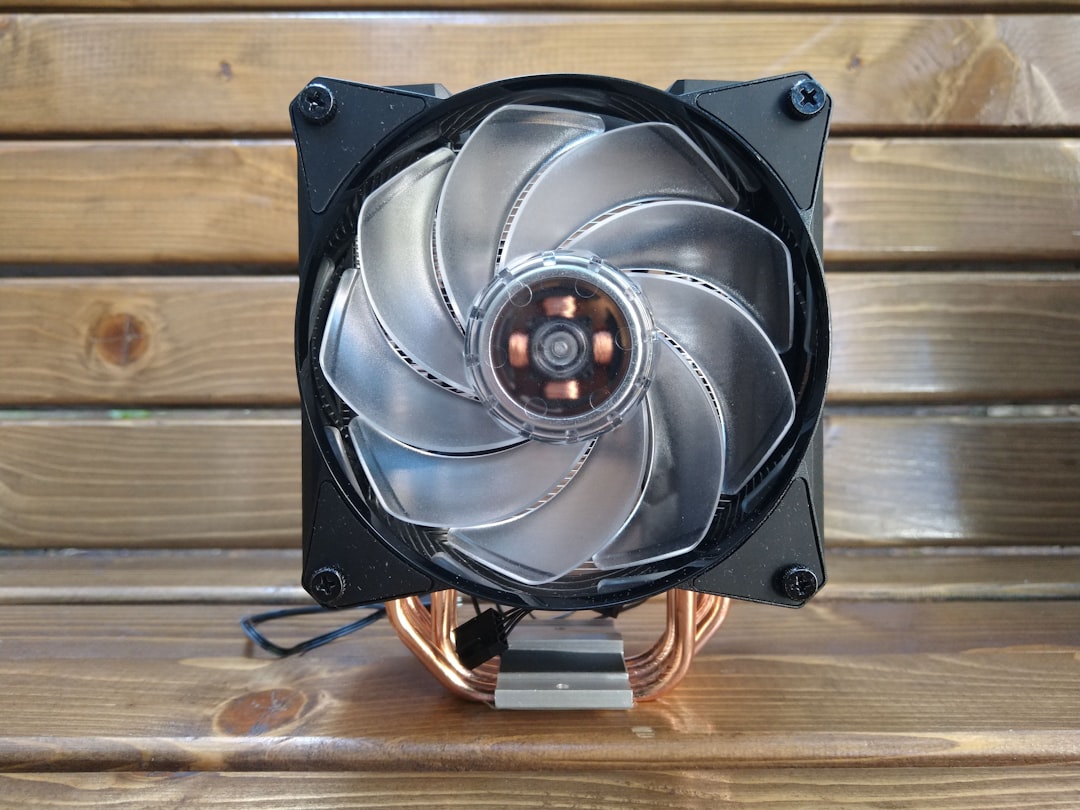
When working on a computer, loud fan noise can quickly become a nuisance. Whether you’re gaming, editing videos, or even just browsing the web, that constant whirring or buzzing can be disruptive and concerning. Fortunately, there are a variety of strategies to reduce fan noise and improve your computing experience.
TL;DR (Too Long; Didn’t Read)
Loud computer fans are often caused by dust buildup, poor airflow, or overheating components. To reduce noise, clean your PC regularly, upgrade to quieter fans, adjust fan settings in the BIOS or with software, and ensure your case allows for proper ventilation. Consider using sound-dampening materials or replacing older components if noise persists.
What Causes Loud Computer Fans?
Understanding what makes computer fans noisy is the first step in solving the issue. Fans are designed to keep a system cool, but excessive noise typically points to an underlying problem.
- Dirt and Dust Accumulation: Dust clogs air vents and fan blades, making the fan work harder and louder.
- Poor Ventilation: Cases with restricted airflow cause fans to spin faster to maintain safe temperatures.
- Overheating Components: A CPU or GPU under heavy load generates more heat, signaling the fans to ramp up.
- Cheap or Aging Fans: Budget fans or older models tend to vibrate more and lack noise-reduction features.
- Background Programs: If system resources are consistently high, fans may stay active longer than necessary.
Essential Noise Reduction Tips
1. Clean Your Computer Regularly
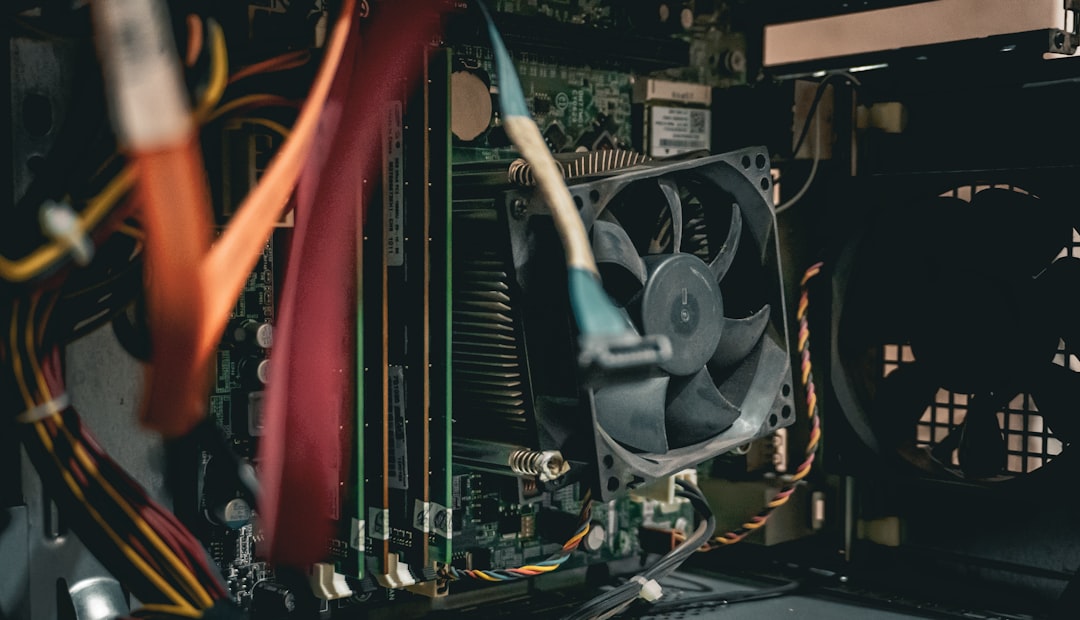
Dirt and dust within your PC are major contributors to increased fan noise. Regular maintenance can reduce unnecessary strain on your fans.
- Use compressed air to blow out dust from fans, heat sinks, and vents.
- Clean filters (if your case has them) every 1-2 months.
- Make sure to power down and unplug the PC before cleaning.
2. Improve Case Airflow
A well-ventilated case can decrease internal temperatures, allowing your fans to run more slowly and quietly.
- Organize cables to reduce air blockage inside the case.
- Add intake and exhaust fans for better airflow direction.
- Avoid placing your PC in tight or enclosed spaces.
3. Adjust Fan Settings
Most modern systems allow for customization of fan speeds. Running fans at unnecessary top speeds can create avoidable noise.
- Access your BIOS or UEFI settings to change the default cooling profile.
- Use software like SpeedFan, MSI Afterburner, or your motherboard manufacturer’s own utility to fine-tune.
- Select profiles like “Silent” or “Balanced” for lower RPMs in low-load conditions.
4. Replace Loud or Worn-Out Fans
If you’ve cleaned your PC and still hear rattling or buzzing, it could be time to replace your fans.
- Look for fans marketed as “quiet” or “low-noise” with fluid dynamic or magnetic levitation bearings.
- Brands like Noctua, be quiet!, and Corsair offer silent performance fans.
- Use anti-vibration mounts and rubber grommets to reduce noise transmission.
5. Use Soundproofing Materials
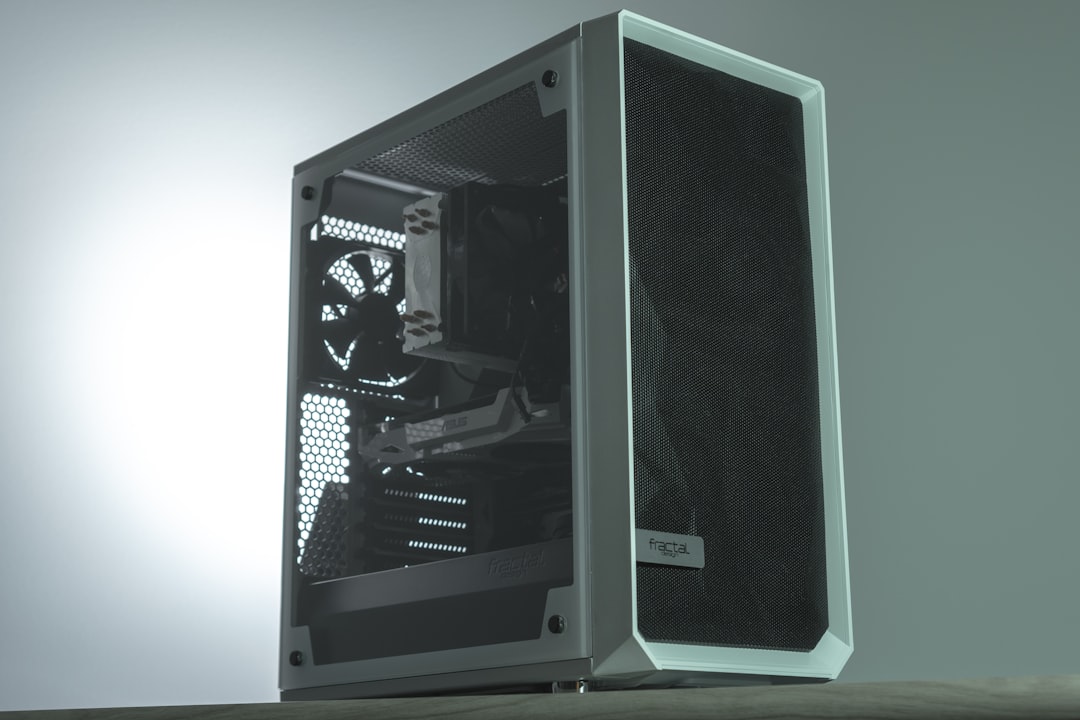
Adding noise-dampening elements can significantly cut down ambient fan sound, especially helpful in quiet office or studio environments.
- Install acoustic foam or sound-dampening mats inside the case panels.
- Consider a case specifically designed for silent operation.
- Pad hard surfaces near the PC to reduce echoed vibration.
6. Monitor System Temperatures
High internal temperatures will cause fans to work harder. Keeping an eye on temps can help prevent loud fan operation.
- Use tools like HWMonitor, Core Temp, or Open Hardware Monitor.
- Ensure CPU and GPU idle and under-load temps are within acceptable ranges (under 70°C idle, under 85°C load).
- If temps are routinely too high, reapply thermal paste or evaluate cooling solutions.
7. Upgrade to Liquid Cooling
For users who demand ultra-silent computing, an all-in-one liquid cooling system (AIO) may be the answer.
- AIO coolers often come with larger, slower-spinning fans that generate less noise.
- The pump noise is usually lower than that of high-RPM fans.
- Ideal for setups with powerful CPUs or overclocking.
8. Disable Unnecessary Background Tasks
Fan activity is directly related to system load. Streamlining processes can help maintain cooler, quieter operations.
- Open Task Manager to check CPU and memory-hogging applications.
- Disable programs from auto-starting with the system.
- Keep systems updated and run virus scans to ensure optimal performance.
When to Worry About Fan Noise
Not all fan noise is harmless. Excessive, sudden, or grinding sounds can be signs of something more serious. Users should be cautious if:
- The noise persists even when the PC is idle.
- There’s a clicking or rattling sound (fan blade or bearing damage).
- Temperatures are still high despite fans operating loudly.
In such cases, users may need to consult a technician or consider replacing core components like the CPU cooler or power supply unit.
Conclusion
Loud computer fans don’t just disrupt focus—they may be a warning sign for deeper issues. With regular maintenance, smart configuration, and perhaps a few upgrades, users can achieve a quiet system that still performs well. Silence isn’t just for minimalists; it’s for anyone who values peace in their digital workspace.
FAQ: Common Questions on Loud Computer Fans
- Q: Why does my laptop fan get so loud suddenly?
A: This usually occurs when the CPU or GPU is under heavy load, possibly from updates or background applications. Cleaning vents and monitoring task usage can help. - Q: How often should I clean my PC fans?
A: For best results, clean your computer every 1–2 months. If you’re in a dusty environment, consider more frequent cleanings. - Q: Is it safe to adjust fan settings in BIOS?
A: Yes, if done carefully. Follow motherboard documentation or professional guides to avoid setting fans too low and risking overheating. - Q: What’s the quietest type of PC fan?
A: Fans using fluid dynamic or magnetic levitation bearings are among the quietest and longest-lasting options. - Q: How do I know which fan is making noise?
A: Temporarily stopping each fan briefly (using software or physically with caution) can help identify the source. Always be careful not to damage the blades or interfere with moving parts.









