















When Facebook Dating stops working, it can feel confusing because the feature is built directly into the Facebook app rather than offered as a separate service. A user may notice that the Dating tab is missing, matches are not loading, messages are not sending, or the feature refuses to open at all. In most cases, the problem is caused by app settings, location restrictions, outdated software, account eligibility, or temporary Facebook server issues.
TLDR: Facebook Dating may not work if the Facebook app is outdated, location services are disabled, the user is underage, or the feature is unavailable in the user’s region. The quickest fixes include updating the app, restarting the device, enabling location access, clearing the cache, and checking whether Facebook Dating is supported. If nothing works, the issue may be on Facebook’s side, and waiting or contacting support may be necessary.
Why Facebook Dating May Not Be Working
Facebook Dating is connected to a regular Facebook profile, but it operates as a separate dating experience inside the main Facebook mobile app. Because of this, problems can come from several different areas: the Facebook app, the device, the internet connection, the user’s account, or Facebook’s own servers.
Before attempting advanced fixes, it helps to understand the most common reasons the feature fails. Facebook Dating may not appear or may stop working when:
- The Facebook app is outdated.
- The user is not old enough to access Dating.
- The feature is not available in the user’s country or region.
- Location services are turned off.
- The account is too new or has restrictions.
- The app cache is corrupted.
- Facebook servers are temporarily down.
- The user is trying to access Dating from a desktop browser instead of the mobile app.
Since the issue can have more than one cause, the best approach is to move through the fixes one by one until Facebook Dating begins working again.
1. Check Whether Facebook Dating Is Available
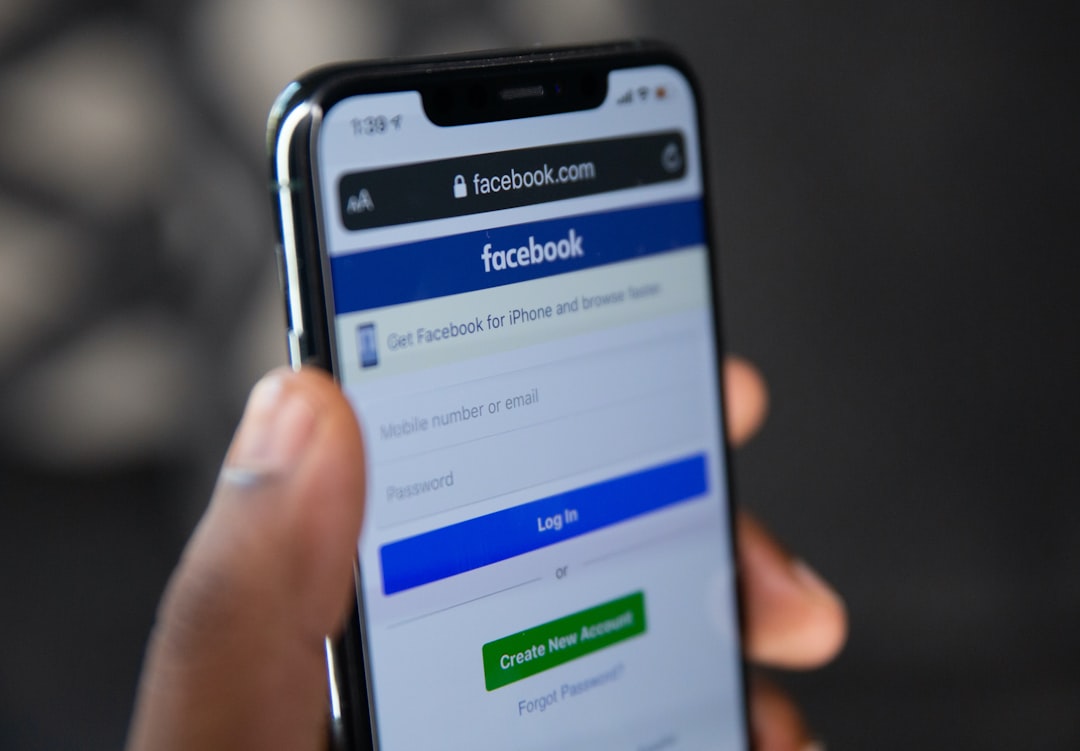
The first thing a user should confirm is whether Facebook Dating is available in their location. The feature is not active in every country, and availability can vary depending on local rules and Facebook’s rollout decisions. If Facebook Dating is unavailable in the user’s region, the Dating option will not appear in the menu, even if the Facebook app is fully updated.
Facebook Dating also requires the user to be at least 18 years old. If the profile age is under 18, the feature will not be visible. In some cases, Facebook may also limit Dating access for accounts that are very new, suspicious, previously reported, or restricted for policy violations.
If the feature has never appeared on the account, eligibility or regional availability is often the most likely explanation.
2. Update the Facebook App
An outdated app is one of the most common reasons Facebook Dating stops working. Since Facebook regularly updates its mobile app to fix bugs, improve security, and adjust features, an older version may fail to load Dating properly.
To fix this, the user should open the Google Play Store on Android or the App Store on iPhone, search for Facebook, and install any available update. After updating, the app should be closed completely and reopened. In many cases, the Dating icon or missing features return immediately after the app is updated.
If automatic updates are disabled, the user may not realize that the app has fallen behind. Turning on automatic app updates can help prevent the same issue from happening again later.
3. Restart the Phone
A simple restart can solve temporary glitches that affect apps, notifications, permissions, and network behavior. If Facebook Dating suddenly stops loading or gets stuck on a blank screen, the device may only need a refresh.
The user should fully restart the phone, wait for it to reconnect to the internet, and then open Facebook again. This step may seem basic, but it clears temporary memory issues and can restore normal app function without changing any settings.
4. Confirm That Facebook Dating Is Being Opened in the Mobile App
Facebook Dating is designed for the Facebook mobile app. It is not generally available through the desktop website in the same way. If a user is trying to find Dating on a computer browser or through a mobile browser, the option may not appear.
The correct method is to open the Facebook app on an Android phone or iPhone, tap the menu icon, and look for Dating. If it is not visible, the user may need to tap See More in the menu. In some versions of the app, the Dating shortcut may appear as a heart icon.
5. Enable Location Services
Facebook Dating relies on location to suggest nearby matches and confirm that the feature is supported in the user’s region. If location access is disabled, Dating may not work correctly or may refuse to load.
On Android, the user can usually go to Settings > Apps > Facebook > Permissions > Location and allow location access. On iPhone, the user can go to Settings > Privacy & Security > Location Services > Facebook and choose an appropriate permission setting.
For best results, location services should be enabled both for the device and for the Facebook app. After changing the setting, the user should reopen Facebook and check Dating again.
Image not found in postmeta6. Check the Internet Connection
Facebook Dating requires a stable internet connection to load profiles, send messages, update matches, and display photos. If the connection is weak or unstable, the feature may appear broken even though the app itself is working.
The user should test the connection by opening other apps or websites. If they also load slowly, the problem is likely the network. Switching between Wi-Fi and mobile data can help identify the source. A user connected to weak Wi-Fi may have better results using mobile data, while someone with poor cellular coverage may need to switch to a stronger Wi-Fi network.
It may also help to turn airplane mode on for a few seconds and then turn it off again. This forces the phone to reconnect to the network and can resolve minor connectivity problems.
7. Clear the Facebook App Cache
Cached data helps apps load faster, but it can sometimes become corrupted. When this happens, Facebook Dating may freeze, display outdated information, fail to show messages, or disappear from the menu.
On Android, the user can clear the Facebook cache by going to Settings > Apps > Facebook > Storage > Clear Cache. This removes temporary files without deleting the Facebook account or profile information.
On iPhone, there is no direct cache-clearing option for most apps. Instead, the user can offload or reinstall the Facebook app. Reinstalling usually clears stored app data and gives the app a fresh start.
Clearing the cache is especially useful when Facebook Dating worked previously but suddenly began acting strangely.
8. Log Out and Log Back In
Account session errors can prevent certain Facebook features from loading correctly. Logging out and logging back in refreshes the session and may restore access to Dating.
The user should open the Facebook app, go to the menu, scroll down, tap Log Out, and then sign in again with the correct account credentials. After signing back in, the user can check whether the Dating option appears and whether messages or matches load properly.
If the user manages multiple Facebook accounts, it is important to confirm that they are signed into the account that originally created the Dating profile.
9. Reinstall the Facebook App
If updating, restarting, and clearing the cache do not work, reinstalling the Facebook app may help. This removes the app from the device and installs a fresh copy, which can fix damaged files or persistent glitches.
The user should uninstall Facebook, restart the phone, and then download the app again from the official app store. After logging in, Facebook Dating can be checked again from the menu.
Reinstalling the app does not delete the user’s Facebook account. However, the user should make sure they know their login information before removing the app from the device.
10. Check Facebook Server Status
Sometimes Facebook Dating is not working because Facebook itself is experiencing technical problems. When Facebook servers have an outage, users may experience loading errors, missing messages, broken notifications, or unavailable features.
The user can check whether other people are reporting Facebook problems by visiting outage tracking websites or checking social media discussions. If many users are reporting similar issues at the same time, the best solution is usually to wait until Facebook fixes the problem.
Server-related problems cannot be fixed by changing device settings. In this case, repeated app reinstallations or account changes are unlikely to help.
11. Review Account Restrictions and Profile Issues
Facebook may restrict access to certain features if an account violates community standards, behaves suspiciously, or appears inauthentic. If the account has been recently locked, reported, or limited, Facebook Dating may not work as expected.
The user should check the account’s support inbox or account status area to see whether Facebook has issued any warnings or restrictions. If there is an active restriction, the user may need to resolve it before Dating becomes available again.
It is also important that the main Facebook profile contains accurate basic information. Facebook Dating uses some profile details to determine eligibility and compatibility. If profile information is incomplete, inaccurate, or recently changed, the feature may behave unpredictably.
12. Update the Phone’s Operating System
Older phone software can create compatibility problems with newer app versions. If the Facebook app is updated but the phone’s operating system is outdated, Dating may not load correctly.
The user should check for system updates in the phone settings. On Android, this is usually found under Settings > System > Software Update. On iPhone, it is found under Settings > General > Software Update.
After installing any available system update, the phone should be restarted before opening Facebook again.
13. Make Sure Notifications Are Enabled
If Facebook Dating appears to work but the user is not receiving match or message alerts, the issue may be notification settings rather than the Dating feature itself. The user should check both Facebook’s in-app notification settings and the phone’s system notification settings.
Notifications can be disabled at multiple levels, including the device, the Facebook app, and specific Facebook features. Enabling notifications may restore alerts for new likes, matches, and conversations.
14. Delete and Recreate the Dating Profile Carefully
If Facebook Dating opens but remains unusable due to profile errors, a user may consider deleting the Dating profile and creating it again. However, this should be treated as a last resort because deleting a Dating profile may remove matches, conversations, and preferences.
Before doing this, the user should try all other troubleshooting steps. If the profile is deleted, Facebook may also require a waiting period before another Dating profile can be created. This option is best used only when the Dating profile itself appears corrupted or permanently stuck.
When to Contact Facebook Support
If none of the above steps work, the user may need to report the issue to Facebook. The report can usually be submitted from inside the app by going to the menu, selecting Help & Support, and choosing Report a Problem.
The report should include a clear description of the issue, the device type, the app version, and any error messages. Screenshots may also help Facebook understand the problem. While support responses are not always immediate, reporting the issue can be useful when the problem is tied to the account or a wider bug.
Best Practices to Keep Facebook Dating Working
Once Facebook Dating is working again, a few habits can help prevent future problems:
- Keep the Facebook app updated to avoid compatibility issues.
- Maintain a stable internet connection when using Dating features.
- Allow location access so matches and regional settings work properly.
- Avoid violating Facebook policies to reduce the risk of account restrictions.
- Restart the device occasionally to clear temporary software issues.
- Check notification settings if message or match alerts disappear.
Most Facebook Dating problems are temporary and can be fixed with basic troubleshooting. If the user is eligible, located in a supported region, and using the updated mobile app, the feature usually returns to normal after permissions, cache, or connection issues are corrected.
FAQ
Why is Facebook Dating not showing up?
Facebook Dating may not show up if the user is under 18, located in an unsupported region, using an outdated app, accessing Facebook from a browser, or using an account that is too new or restricted.
Can Facebook Dating be used on a computer?
Facebook Dating is primarily available through the Facebook mobile app. A user who tries to access it from a desktop browser may not see the Dating feature.
Why are Facebook Dating messages not loading?
Messages may fail to load because of a weak internet connection, app cache problems, server issues, or a temporary account session error. Clearing the cache, restarting the app, or logging out and back in may help.
Does reinstalling Facebook delete a Dating profile?
Reinstalling the Facebook app does not normally delete the user’s Facebook Dating profile. The profile is connected to the account, not just the app installation. However, the user should know the correct login details before uninstalling the app.
Why does Facebook Dating say location is unavailable?
This usually happens when location services are disabled, Facebook does not have permission to access location, or the user is in a region where Facebook Dating is not supported.
What should a user do if nothing fixes Facebook Dating?
If all troubleshooting steps fail, the user should check for Facebook outages and report the issue through Help & Support inside the Facebook app. The problem may be related to the account or a temporary Facebook bug.