





















Your HP printer says offline. You say, “But it is right there!” Do not worry. This is a very common printer mood swing. The good news is that you can usually fix it in a few minutes.
TLDR: Your HP printer may show offline because of a weak Wi Fi signal, a bad cable, a stuck print job, or the wrong printer setting. Start by restarting the printer, computer, and router. Then set your HP printer as the default printer and turn off Use Printer Offline. If that fails, remove and add the printer again.
Why Does an HP Printer Show Offline?
An HP printer goes offline when your computer cannot talk to it. The printer may be powered on. It may even look happy. But your computer still cannot send the print job.
Think of it like two friends at a noisy party. One says, “Print this!” The other says, “What?” That is the whole problem.
Common reasons include:
- Wi Fi trouble. The signal is weak or the printer is on the wrong network.
- A loose USB cable. The cable looks plugged in, but it is not snug.
- Printer sleep mode. The printer took a tiny nap.
- Wrong default printer. Your computer picked a different printer.
- Stuck print queue. One bad job blocks all the others.
- Old drivers. The printer software needs an update.
- Router issues. Your Wi Fi router is having a dramatic day.
Step 1: Check the Simple Stuff First
Before you dive into settings, do the easy checks. They may sound too simple. But they work a lot.
- Make sure the HP printer is turned on.
- Check the paper tray.
- Check the ink or toner.
- Look for blinking warning lights.
- Make sure the printer screen does not show an error.
- If using USB, check both ends of the cable.
- If using Wi Fi, make sure the printer is near the router.
If the printer has a small screen, tap it. Wake it up. Some printers go into sleep mode and need a gentle poke. Like a cat. But less furry.
Step 2: Restart Everything
This is the classic fix. It is almost too boring. But it is powerful.
Restart these three things:
- Your HP printer
- Your computer
- Your Wi Fi router
Turn the printer off. Unplug it from the wall. Wait 30 seconds. Plug it back in. Turn it on again.
Then restart your computer. After that, restart your router. Unplug the router, wait 30 seconds, and plug it back in.
Give everything a minute or two. Wi Fi needs time to stretch and wake up.
Step 3: Make Sure the Printer Is on the Right Wi Fi
This one fools many people. Your home may have more than one Wi Fi network. For example, you may have a 2.4 GHz network and a 5 GHz network. Or you may have a guest network.
Your computer and HP printer should be on the same network. If they are not, they may not see each other.
On the printer screen, open the Wireless or Network menu. Look for the network name. It should match the Wi Fi name on your computer.
If the printer is on the wrong network, reconnect it.
You can usually do this from:
- Wireless Setup Wizard on the printer screen
- HP Smart app on your phone or computer
- WPS button on your router, if supported
Enter the Wi Fi password carefully. Passwords are sneaky. A capital letter matters. A tiny typo can ruin the party.
Step 4: Set Your HP Printer as the Default Printer
Your computer may be sending files to the wrong printer. Maybe an old printer. Maybe a virtual printer. Maybe a printer that moved out years ago.
Let us fix that.
On Windows
- Click Start.
- Open Settings.
- Go to Bluetooth & devices.
- Click Printers & scanners.
- Select your HP printer.
- Click Set as default.
If Windows has a setting called Let Windows manage my default printer, turn it off. Windows means well. But sometimes it gets fancy.
On Mac
- Open System Settings.
- Click Printers & Scanners.
- Select your HP printer.
- Set it as the default printer.
Now try printing a test page. If it works, celebrate. Maybe with a snack.
Step 5: Turn Off “Use Printer Offline”
Windows has a setting called Use Printer Offline. When this is turned on, your printer stays offline on purpose. It is like putting a “Do Not Disturb” sign on your printer.
Here is how to turn it off:
- Open Control Panel.
- Click Devices and Printers.
- Right click your HP printer.
- Click See what’s printing.
- Click Printer in the top menu.
- If Use Printer Offline is checked, click it to remove the check.
Also look for Pause Printing. If it is checked, uncheck it too.
Step 6: Clear the Print Queue
A stuck print job can block everything. It is like one cart stuck in a grocery aisle. Nobody moves.
Clear the queue and start fresh.
On Windows
- Go to Settings.
- Click Bluetooth & devices.
- Click Printers & scanners.
- Select your HP printer.
- Click Open print queue.
- Cancel all jobs.
On Mac
- Open System Settings.
- Click Printers & Scanners.
- Select your HP printer.
- Click Printer Queue.
- Delete stuck jobs.
Now restart the printer again. Then try one small test print. Do not print a 90 page document yet. Start with something tiny. Be kind to the printer.
Step 7: Check the USB Cable
If your HP printer uses a USB cable, check the cable. Unplug it. Plug it back in. Push it in firmly.
Try a different USB port on your computer. If that does not work, try a different cable. USB cables can fail quietly. They do not scream. They just betray you.
Avoid using a USB hub if possible. Plug the printer straight into the computer. This gives it a cleaner connection.
Step 8: Update or Reinstall the HP Printer Driver
A printer driver is software that helps your computer talk to your printer. If the driver is old or damaged, you may see offline errors.
You can update the driver through your computer settings. You can also use the HP Smart app to manage and reconnect the printer.
On Windows, try this:
- Open Device Manager.
- Find Print queues.
- Right click your HP printer.
- Click Update driver.
If that does not help, remove the printer and add it again.
Step 9: Remove and Add the Printer Again
This is a clean reset for your computer’s printer list. It often fixes weird offline issues.
On Windows
- Open Settings.
- Go to Bluetooth & devices.
- Click Printers & scanners.
- Select your HP printer.
- Click Remove.
- Restart your computer.
- Go back to Printers & scanners.
- Click Add device.
On Mac
- Open System Settings.
- Click Printers & Scanners.
- Select the HP printer.
- Click Remove Printer.
- Restart your Mac.
- Add the printer again.
When adding the printer, choose the correct HP model. If you see more than one version, pick the one that matches your printer name best.
Step 10: Print a Network Report
Many HP printers can print a network report. This page shows if the printer is connected to Wi Fi. It also shows the IP address.
Look in the printer menu for:
- Network Settings
- Wireless Report
- Network Configuration Page
If the report says the printer is disconnected, reconnect it to Wi Fi. If it shows a very weak signal, move the printer closer to the router.
Printers do not love being hidden in cabinets. They need air. They need signal. They need emotional support.
Step 11: Check Your Router
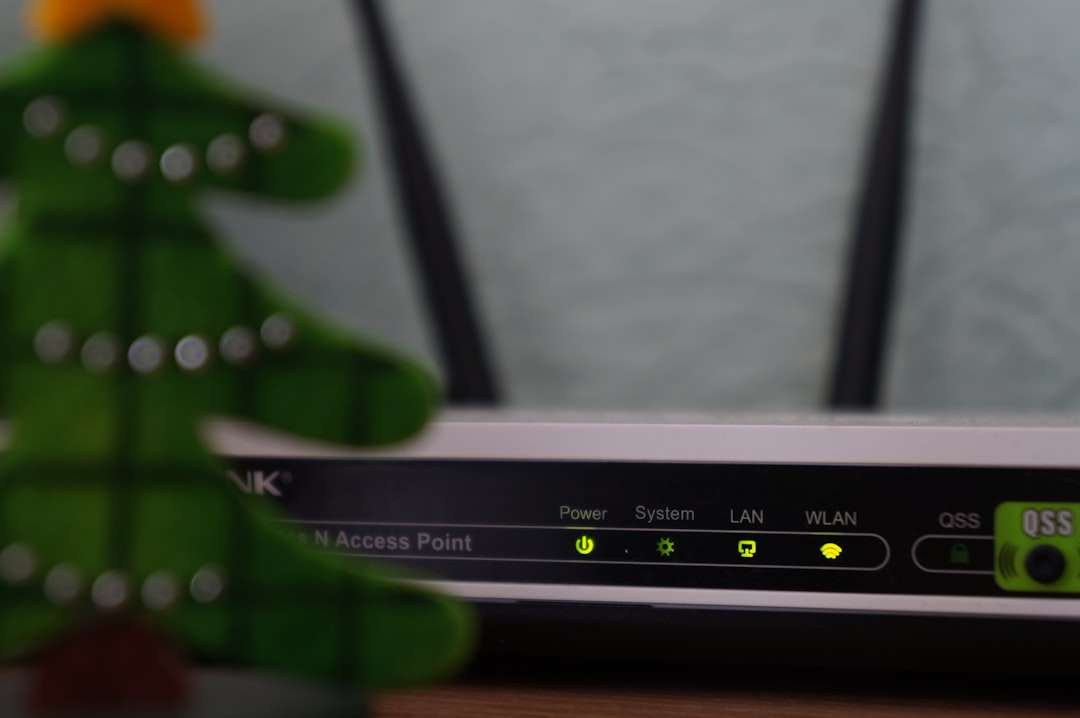
Your router may be the troublemaker. If other devices are also slow, your network may be struggling.
Try these quick fixes:
- Move the printer closer to the router.
- Keep the printer away from thick walls.
- Avoid placing it near microwaves.
- Restart the router.
- Make sure the router firmware is updated.
If your router has both 2.4 GHz and 5 GHz networks, try 2.4 GHz for the printer. It is often better for printers because it reaches farther.
Step 12: Use the HP Smart App
The HP Smart app is a handy tool. It can find your printer, show printer status, and help reconnect it.
Use it to:
- Check if the printer is online.
- Reconnect the printer to Wi Fi.
- Update printer settings.
- Scan documents.
- Run printer diagnostics.
If the app cannot find the printer, restart the printer and your device. Then try again.
When Nothing Works
If your HP printer still says offline, do not panic. Try one final reset.
- Turn off the printer.
- Unplug it for one full minute.
- Restart your router.
- Restart your computer.
- Plug the printer back in.
- Reconnect it to Wi Fi.
- Add it again on your computer.
If the printer still refuses to cooperate, check for hardware problems. There may be a damaged cable, bad network card, or printer error that needs service.
Quick Checklist
Use this list when your HP printer goes offline again. Because printers do enjoy repeat performances.
- Is the printer turned on?
- Is it connected to the same Wi Fi as your computer?
- Is the Wi Fi signal strong?
- Is your HP printer set as default?
- Is Use Printer Offline turned off?
- Is the print queue clear?
- Are the drivers updated?
- Have you restarted the printer, computer, and router?
Final Thoughts
An HP printer offline error can feel annoying. But the fix is usually simple. Start with power, cables, and Wi Fi. Then check printer settings and clear the print queue.
Most of the time, your printer just needs a small reset and a little attention. Once the connection is restored, you can get back to printing forms, photos, labels, recipes, homework, or that one return label you absolutely need today.
And if your printer behaves after all this, give it a respectful nod. It has returned from the offline wilderness.









