





















Few things are more frustrating than opening your laptop to start work or relax with a movie, only to find strange lines running across the screen. Whether they’re thin vertical streaks, colorful horizontal bars, or faint flickering grids, lines on a laptop display can be distracting and worrying. The good news? In many cases, the problem can be diagnosed—and sometimes fixed—without immediately replacing your device.
TLDR: Lines on a laptop screen can be caused by software glitches, outdated drivers, loose internal connections, hardware damage, or a failing display panel. Start by checking for software issues and updating your graphics drivers. If the problem persists, test with an external monitor to determine whether the GPU or screen is at fault. Physical damage or internal hardware failure often requires professional repair or screen replacement.
Understanding the Different Types of Screen Lines
Before jumping into solutions, it helps to identify what kind of lines you’re seeing. The pattern, color, and behavior of the lines can provide valuable clues.
- Vertical lines: These run from top to bottom and may be solid, flickering, or multi-colored.
- Horizontal lines: Usually stretch from left to right and may appear intermittently.
- Flickering lines: Appear and disappear, often related to refresh rate or driver issues.
- Static lines: Persistent and unchanging, often linked to hardware problems.
Take note of when the lines appear. Do they show up immediately when you power on the laptop? Only after logging into your operating system? Or randomly after hours of use? These details matter.
Common Causes of Lines on a Laptop Screen
1. Graphics Driver Issues
Outdated or corrupted graphics drivers are one of the most common causes of display anomalies. Drivers act as a bridge between your operating system and your laptop’s graphics hardware. If they malfunction, your screen may display unexpected artifacts—including lines.
Symptoms of driver-related problems:
- Lines appear after a system update.
- The issue resolves temporarily after restarting.
- External monitor shows the same problem.
Fix:
- Update your graphics driver through Device Manager or the manufacturer’s website.
- Roll back to a previous driver version if the issue started after an update.
- Reinstall the graphics driver completely.
2. Loose or Damaged Display Cable
Inside your laptop, a thin display cable connects the screen to the motherboard. Over time—especially if you frequently open and close your laptop—this cable can become loose or worn.
Tell-tale signs include:
- Lines change or disappear when you adjust the screen angle.
- The display flickers when moving the lid.
- Only part of the screen is affected.
Fix:
This typically requires opening the laptop casing to reseat or replace the cable. If you’re not experienced with laptop repairs, it’s best handled by a technician.
3. Physical Screen Damage
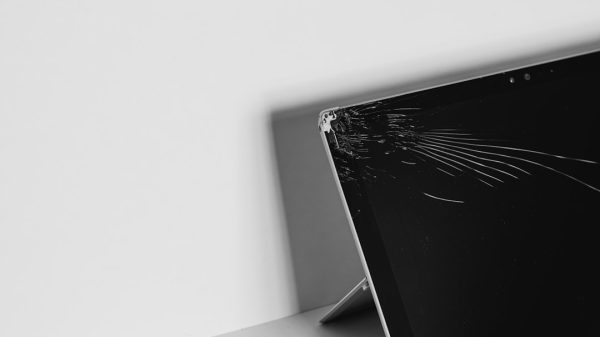
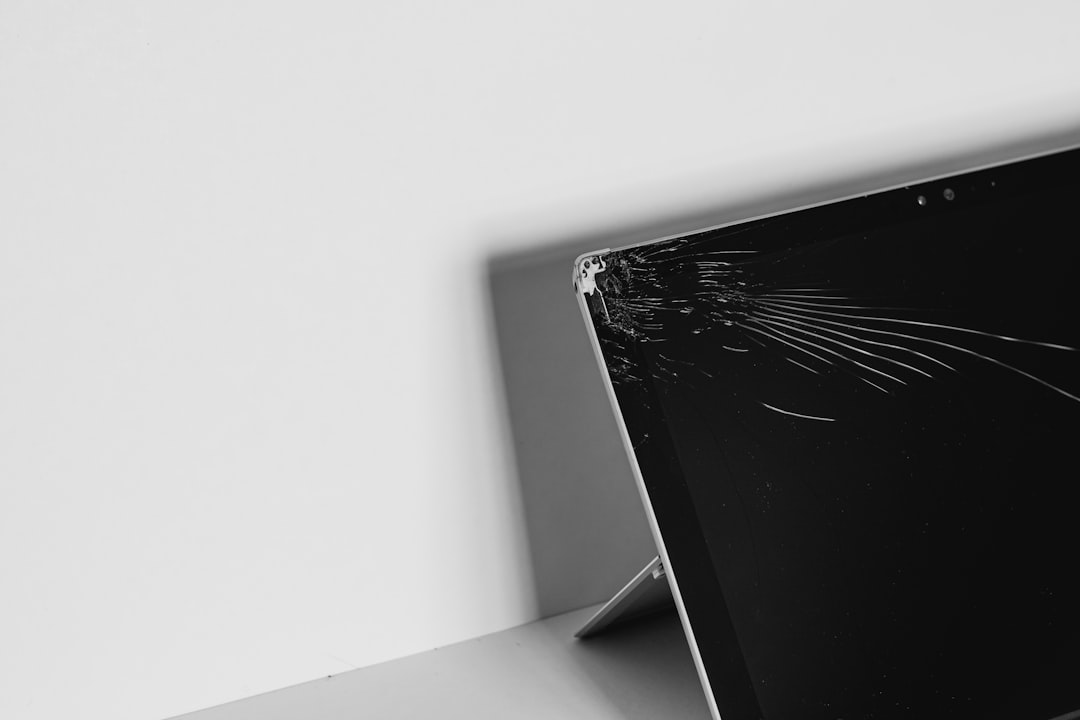
If your laptop has been dropped, bumped, or closed with something trapped inside, the LCD or LED panel may be damaged—even if there’s no obvious crack.
Pressure damage can disrupt the pixels in specific rows or columns, leading to permanent vertical or horizontal lines.
Common indicators of physical damage:
- Discolored patches near the lines.
- Spiderweb cracks (even small ones).
- Lines that never change or move.
Fix: Unfortunately, physical damage usually means the screen must be replaced. The cost varies depending on your laptop model and display type.
4. Failing Graphics Card (GPU)
If your laptop’s graphics processing unit is failing, you might see lines, artifacts, or distorted images. This is more common in older laptops or gaming machines that experience heavy graphical demands.
How to test:
- Connect your laptop to an external monitor.
- If the lines appear on both displays, the GPU may be the problem.
Fix:
- Ensure your laptop isn’t overheating by cleaning vents and fans.
- Update or reinstall graphics drivers.
- In some cases, the motherboard may need replacement.
5. Software Glitches or Operating System Errors
Sometimes the issue is temporary and caused by a software glitch. Corrupted system files, incompatible display settings, or bugs in a recent OS update can all produce visual anomalies.
Quick checks:
- Restart your laptop.
- Boot into Safe Mode.
- Adjust screen resolution or refresh rate.
If the lines disappear in Safe Mode, a third-party application or driver is likely the culprit.
6. Stuck or Dead Pixels
A single thin line could be a row of stuck or dead pixels. This usually appears as a consistent line of one color.
Difference between the two:
- Stuck pixels: Frozen on one color, sometimes fixable.
- Dead pixels: Permanently black and usually irreversible.
Fix:
There are pixel-fixing software tools that rapidly change screen colors to stimulate stuck pixels. Success isn’t guaranteed, but it’s worth trying before replacing the screen.
Step-by-Step Troubleshooting Guide
If you’re unsure what’s causing the lines, follow this structured approach:
- Restart your laptop. Sometimes a simple reboot clears temporary glitches.
- Check for updates. Install the latest OS and graphics driver updates.
- Change display settings. Adjust resolution and refresh rate.
- Test an external monitor. This isolates the problem to either the screen or the GPU.
- Gently adjust the screen angle. Look for changes that suggest a loose cable.
- Run hardware diagnostics. Many laptops include built-in testing tools accessible at startup.
When to Seek Professional Help
While software issues are often easy to fix at home, hardware repairs can be complex. Seek professional assistance if:
- The laptop is under warranty.
- You suspect motherboard or GPU failure.
- The screen needs physical replacement.
- You’re uncomfortable opening the device.
Attempting DIY repairs without proper tools or knowledge may lead to further damage.
How to Prevent Screen Lines in the Future
Prevention may not stop every issue, but it can significantly reduce the risk of hardware-related problems.
- Handle with care: Avoid placing heavy objects on your closed laptop.
- Keep it clean: Dust buildup can cause overheating, which stresses internal components.
- Avoid extreme temperatures: Heat and cold can damage display panels.
- Regularly update software: Ensure drivers and operating systems are current.
- Use a protective sleeve: Especially during travel.
Repair vs. Replacement: What Makes Sense?
In some cases, fixing a laptop screen may not be cost-effective—especially if the device is several years old.
Consider repair if:
- Your laptop is relatively new.
- The repair cost is less than half the price of a replacement.
- The issue is limited to the screen.
Consider replacement if:
- The motherboard or GPU is failing.
- Multiple components show signs of wear.
- The cost of repair approaches the cost of a new machine.
As a rule of thumb, if your laptop is over five years old and experiencing major hardware issues, investing in a new device might offer better long-term value.
Final Thoughts
Lines on your laptop screen can range from minor annoyances to signs of serious hardware failure. The key is identifying whether the cause is software-based, connection-related, or due to physical damage. By methodically testing with driver updates, external monitors, and system diagnostics, you can often pinpoint the source without guesswork.
While some issues—like outdated drivers or temporary glitches—are easy to resolve, others may require professional repair or a display replacement. Acting quickly when you first notice screen abnormalities can prevent further damage and potentially save money. With the right troubleshooting steps and a bit of patience, you’ll be well-equipped to restore your display to its crisp, clear state.









