






















Taking a screenshot on a Huawei laptop is easier than you think. You do not need special software. You do not need advanced skills. With a few simple keyboard shortcuts and built-in tools, you can capture anything on your screen in seconds. This guide will walk you through every method in a fun and simple way.
TLDR: Taking a screenshot on a Huawei laptop is quick and simple. You can use keyboard shortcuts like PrtSc, Windows + Shift + S, or the Snipping Tool. Screenshots are saved automatically or copied to your clipboard. Pick the method that works best for you and start capturing!
Why Take a Screenshot?
Before we jump in, let’s look at why screenshots matter.
- Save important information from websites.
- Share error messages with tech support.
- Keep receipts for online purchases.
- Capture memories from videos or chats.
- Create tutorials or guides.
A screenshot is simply a picture of what is on your screen. That’s it. Simple and powerful.
Method 1: Use the Print Screen (PrtSc) Key
This is the fastest way.
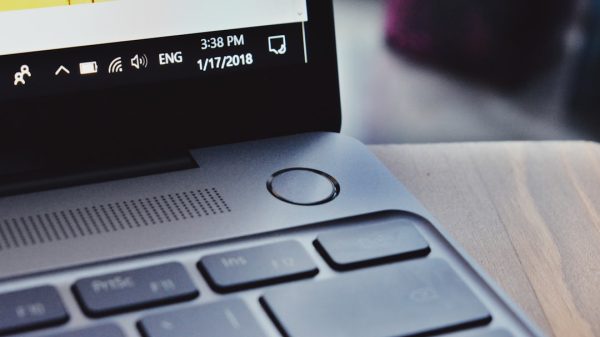
Look at your keyboard. Find the key labeled PrtSc, PrtScn, or Print Screen. On Huawei laptops, it is usually in the top row.

Option A: Capture the Whole Screen
Press the PrtSc key once.
What happens?
- The entire screen is captured.
- The image is copied to your clipboard.
- It is not saved automatically.
Now open Paint, Word, or any image editor.
Press Ctrl + V to paste the screenshot.
Click Save.
Done.
Option B: Save Automatically
Press Windows key + PrtSc.
Your screen may dim for a second. That means success.
Where is the file?
- Open File Explorer.
- Go to Pictures.
- Open the Screenshots folder.
Your image will be waiting there.
This method is perfect if you take many screenshots every day.
Method 2: Use Windows + Shift + S (Snipping Bar)
This method gives you more control.
Press:
Windows + Shift + S
Your screen will dim. A small menu will appear at the top.
You will see four options:
- Rectangular Snip – Drag to select a rectangle.
- Freeform Snip – Draw any shape.
- Window Snip – Capture a specific window.
- Fullscreen Snip – Capture everything.
Select the option you want.
Click and drag if needed.
The screenshot is copied to your clipboard.
You will also see a small notification.
Click it to edit and save the image.
This method is very useful. Especially if you only need part of the screen.
Method 3: Use the Snipping Tool
The Snipping Tool is built into Windows. Huawei laptops use Windows, so you already have it.
To open it:
- Click the Start Menu.
- Type Snipping Tool.
- Click the app.
Once open:
- Click New.
- Select the area you want.
- Edit if needed.
- Click Save.

You can even use tools like:
- Pen
- Highlighter
- Eraser
This is great for marking up tutorials or homework.
Method 4: Alt + Print Screen
Sometimes you only want one window. Not the whole screen.
Click the window you want to capture.
Press:
Alt + PrtSc
This captures only the active window.
Then paste it using Ctrl + V in Paint or another app.
This keeps your screenshot clean and focused.
Method 5: Use Huawei PC Manager (If Available)
Some Huawei laptops include extra software like PC Manager.
This software may offer easy screenshot options.
Check your taskbar for the PC Manager icon.
If available:
- Open it.
- Look for screenshot tools.
- Follow the on-screen steps.
Not all models have this feature. Do not worry if yours does not.
Where Do Your Screenshots Go?
This depends on the method you use.
If you used Windows + PrtSc:
- Pictures → Screenshots
If you used PrtSc alone:
- Copied to clipboard
- You must paste and save manually
If you used Snipping Tool:
- You choose the save location
If you cannot find your screenshot, search your computer for “Screenshots”.
How to Take a Screenshot on a Huawei Laptop Without a Print Screen Key
Some compact keyboards may not show a clear PrtSc key.
In this case:
- Look for a key with small secondary text.
- You may need to press Fn + PrtSc.
Still stuck?
Just use:
Windows + Shift + S
This shortcut works on all modern Huawei laptops running Windows 10 or 11.
How to Edit Your Screenshot
After capturing, you may want to edit your image.
Here are simple tools you can use:
- Paint – Basic and easy.
- Snipping Tool – Built-in editing options.
- Photos App – Crop and adjust.
Common edits include:
- Crop unnecessary areas.
- Add arrows.
- Highlight text.
- Blur private information.
Editing makes your screenshot clearer and more helpful.
Tips for Better Screenshots
Want clean and professional-looking screenshots?
- Close unused tabs.
- Remove clutter from your desktop.
- Zoom in if text is small.
- Highlight key areas.
- Check spelling before capturing.
Small details make a big difference.
Common Problems and Quick Fixes
Problem: Nothing Happens When I Press PrtSc
- Try Fn + PrtSc.
- Check if your keyboard is working.
- Restart your laptop.
Problem: Screenshot Not Saving
- Check the Screenshots folder.
- Make sure you used Windows + PrtSc.
- Paste manually into Paint.
Problem: Screenshot Is Blank
- Make sure the window was active.
- Try a different screenshot method.
- Update Windows.
Most issues are easy to fix.
Bonus: Take Screenshots of a Scrolling Page
Need to capture a full webpage?
The built-in tools do not scroll automatically.
Use your web browser:
In Microsoft Edge:
- Press Ctrl + Shift + S.
- Choose Capture full page.
This works great for long articles or receipts.
Final Thoughts
Taking a screenshot on a Huawei laptop is simple and fast. You have many options. You can capture the whole screen. You can capture one window. You can select a custom area.
Here is a quick reminder:
- PrtSc – Copies full screen.
- Windows + PrtSc – Saves automatically.
- Windows + Shift + S – Select area.
- Alt + PrtSc – Capture active window.
- Snipping Tool – More editing control.
Pick the method that fits your needs.
Practice once or twice. It becomes second nature.
Now you are ready. Go ahead and capture your screen like a pro.









