





















Mirroring your phone to a bigger screen feels like magic. One tap, and your tiny display turns into a massive canvas. Whether you want to stream videos, play games, teach online, or present slides, ApowerMirror makes it simple. But most people only use the basics. That means they miss out on powerful features that make the experience smoother, sharper, and more professional.
TLDR: ApowerMirror can do more than just basic screen casting. Use the right connection method for better stability. Adjust display and resolution settings for a sharper image. Learn keyboard controls and recording tools to level up your presentations. With a few smart tweaks, you can mirror your iPhone or Android like a pro.
Let’s jump into five practical tips that will instantly improve your mirroring experience.
1. Choose the Best Connection Method for Stable Mirroring
Not all connections are created equal. If your screen lags or freezes, the problem is usually the connection method.
ApowerMirror gives you two main ways to connect:
- WiFi connection
- USB cable connection
Each has its strengths.
WiFi Connection
This is the easiest method. No cables. No clutter. Just connect both devices to the same WiFi network and start mirroring.
It’s perfect for:
- Streaming videos
- Online meetings
- Casual screen sharing
But WiFi depends on signal strength. Weak signal equals lag.
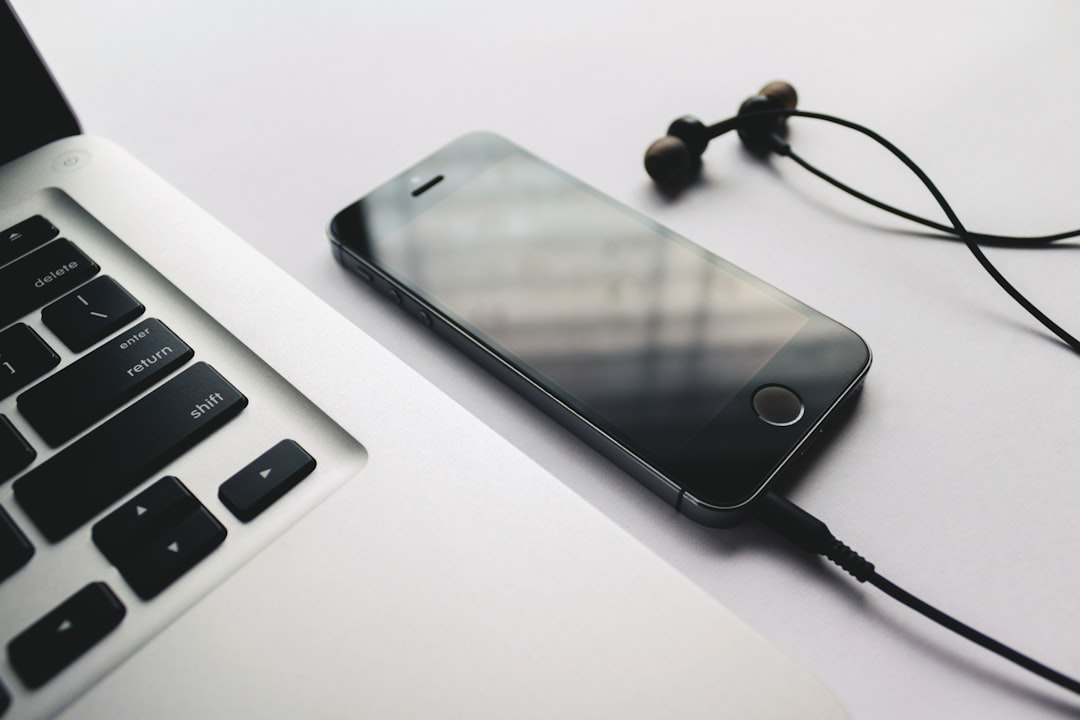
USB Cable Connection
Want zero delay? Use a cable.
This method gives you:
- Lower latency
- More stable connection
- Sharper image quality
It’s ideal for gaming and live demos.
Here’s a quick comparison:
| Feature | WiFi | USB |
|---|---|---|
| Setup Ease | Very easy | Easy |
| Stability | Medium | High |
| Lag | Possible | Very low |
| Best For | Streaming, meetings | Gaming, presentations |
Pro Tip: If something important is at stake, like a live presentation, always bring a cable as backup.
2. Adjust Display Settings for a Sharper Image
Your screen looks blurry on the big display? That’s usually a settings issue.
ApowerMirror lets you tweak resolution and display quality. Most users ignore this. Big mistake.
Optimize Resolution
Go to settings inside ApowerMirror. Increase the resolution if your computer supports it. Higher resolution means clearer text and smoother visuals.
This is especially important for:
- Business presentations
- Teaching classes
- Showing design work
Switch to Full Screen Mode
Don’t present inside a tiny window. Click full screen mode. It removes distractions and looks more professional.
Adjust Frame Rate
If you are gaming or showing animations, frame rate matters.
- Higher frame rate = smoother motion
- Lower frame rate = less strain on weak computers
Test your setup before going live. Small tweaks make a huge difference.
3. Use Keyboard and Mouse Control Like a Boss (Android Only)
This is where things get powerful.
If you mirror an Android device, you can control it directly from your PC using your keyboard and mouse.
Yes. No more tapping your phone screen constantly.
Why This Is a Game-Changer
- Type faster using a real keyboard
- Navigate apps quickly
- Reply to messages during presentations
- Play mobile games with better precision
If you’re demonstrating an app to clients, this makes you look super polished.
Instead of awkwardly touching your phone in front of everyone, you simply click and type from your computer.
It feels seamless. And professional.
Note: For USB control, enable USB debugging in Android developer options.
What About iPhone?
iPhones don’t allow full control due to system restrictions. You can mirror, but not fully operate the phone from your PC.
Still great for presentations. Just not interactive in the same way.
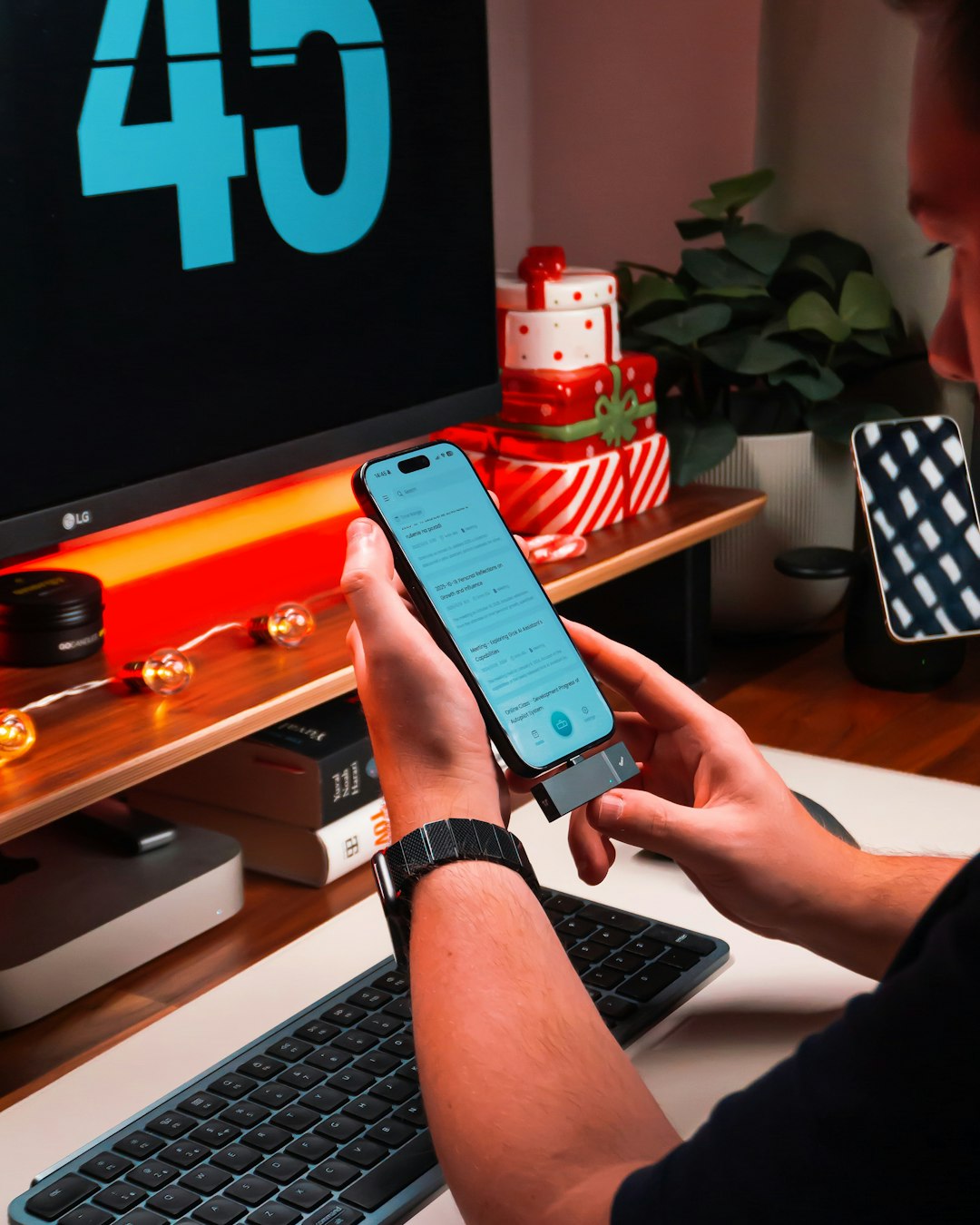
4. Record and Screenshot Like a Content Creator
Mirroring is cool. Recording is cooler.
ApowerMirror has built-in recording tools. You don’t need extra software.
This is perfect for:
- Creating tutorials
- Recording gameplay
- Saving live sessions
- Making social media content
How to Record
Just click the record button inside the app. Choose your settings. Start recording. Done.
Want even better results?
- Use USB connection to reduce lag
- Close unnecessary apps
- Record in high resolution
Screenshot Feature
Need a quick capture? Use the screenshot tool.
This is great when you:
- Teach students
- Show step-by-step instructions
- Need proof of something on screen
The images save directly to your computer. No extra steps.
Pro Tip: Plan your recording space. Clean desktop. Good lighting if using webcam overlay. Professional details matter.
5. Use Whiteboard and Annotation Tools During Presentations
Want to stand out during meetings?
Use the whiteboard and drawing tools.
These features allow you to:
- Highlight key points
- Circle important sections
- Draw arrows
- Add notes in real time
This is incredibly useful for:
- Online teaching
- Product demonstrations
- Team meetings
Instead of just talking, you interact visually. That keeps attention high.
You can pause the screen, annotate, then continue. It feels smooth. Controlled. Intentional.
Bonus Tips to Mirror Like a Pro
Small adjustments make big improvements. Try these:
- Close background apps to free up system resources.
- Update ApowerMirror to the latest version.
- Restart devices if connection fails.
- Use 5GHz WiFi for faster wireless performance.
- Test everything before live events.
Preparation is what separates beginners from pros.
Common Mistakes to Avoid
Even great tools can fail if used incorrectly. Watch out for these common mistakes:
- Using weak public WiFi
- Ignoring software updates
- Not enabling permissions on phone
- Running heavy apps during mirroring
If something glitches, don’t panic. Check the basics first.
Most issues are simple connection problems.
Final Thoughts
Mirroring your iPhone or Android screen should feel effortless. And with ApowerMirror, it really can be.
The secret is not just clicking “mirror” and hoping for the best.
It’s about:
- Choosing the right connection
- Optimizing display settings
- Using control features smartly
- Recording like a creator
- Annotating like a presenter
These five tips transform a basic screen share into a professional setup.
Whether you’re a teacher, gamer, student, business owner, or content creator, mastering these features will save time and reduce stress.
And once you get comfortable with it?
You’ll wonder how you ever presented without it.
Now plug in. Connect. And mirror like a pro.









