





















HP laptops are known for their reliability and user-friendly features, but like any device, new users—or even experienced ones after a system update—may find themselves confused by simple tasks such as enabling wireless connectivity. Whether you’re setting up your laptop for the first time, troubleshooting a sudden loss of Wi-Fi, or reconfiguring a used device, knowing how to switch on wireless functionality is essential to staying connected.
TL;DR (Too Long; Didn’t Read)
To switch on wireless on an HP laptop, users can press a dedicated function key (often F12), use Windows Settings, or enable Wi-Fi through Device Manager if the hardware is disabled. Some models even include a physical wireless switch. Always ensure that Airplane Mode is disabled and that the correct drivers are installed. If none of these work, updating or reinstalling network drivers may help.
Ways to Turn On Wireless on an HP Laptop
There are several different methods to enable wireless networking on an HP laptop. These methods may vary depending on your laptop model and the version of Windows you’re using, but they can all help to re-establish a wireless connection swiftly.
1. Using the Function Keys
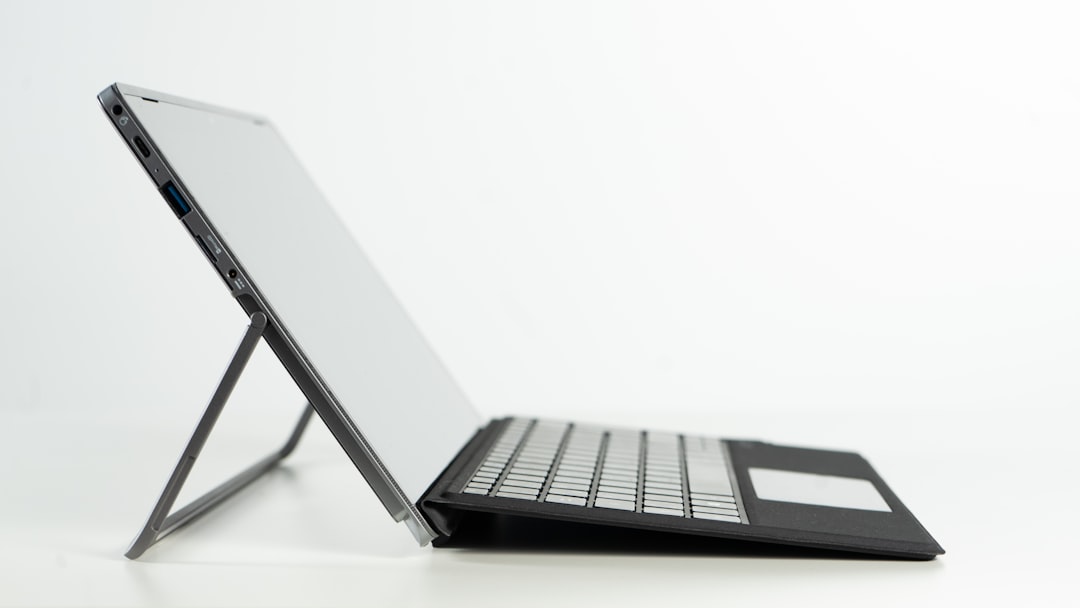
Most HP laptops have a designated key for controlling the wireless adapter. This key is often part of the function key row at the top of your keyboard and usually includes a small wireless icon (a stylized antenna or signal bars).
- Look for the F12 key. On many HP models, this key has a wireless symbol.
- If your function keys require you to press Fn to activate them, hold down the Fn key, then press F12.
- On some newer models, pressing F12 alone toggles wireless on and off. A small LED light may turn on or change color to indicate the status—typically orange for disabled, white or blue for enabled.
2. Use Windows Settings
For users who prefer a graphical interface or whose function key isn’t working as expected, wireless can also be enabled through Windows Settings:
- Click the Start menu and select Settings.
- Navigate to Network & Internet.
- Select the Wi-Fi tab from the left sidebar.
- If Wi-Fi is switched off, toggle the switch to turn it On.
- Click on Show available networks to connect to the desired network.
Ensure that the device is not in Airplane Mode, which disables all wireless communication. This setting can be found under the same Network & Internet section.
3. Physical Wireless Switch
Some older HP laptop models come with a physical wireless switch located on the side or front edge of the device. This mechanical switch operates independently of software and enables or disables the wireless hardware at the hardware level.
- Look along the edges of the laptop for a sliding switch labeled with a wireless or radio icon.
- If it’s set to the “off” position, slide it to “on.”
- Often, there’s an LED indicator beside the switch that will light up when the wireless card is activated.
4. Enable Wireless Adapter via Device Manager
If the wireless feature doesn’t turn on using the above methods, the wireless adapter may be disabled in Device Manager. To re-enable it:
- Right-click the Start button and select Device Manager.
- Expand the Network adapters section.
- Right-click the Wi-Fi adapter (usually includes terms like “Wireless” or “802.11”) and click Enable (if available).
- If the option says Disable, then it’s already enabled.
If the adapter does not appear at all or has a yellow triangle icon, it may indicate a driver issue.
5. Reinstall or Update Wireless Drivers
Sometimes the wireless won’t work because of outdated or corrupted drivers. Reinstalling or updating your drivers can quickly solve this issue.
- Go to Device Manager (as described above).
- Right-click the wireless adapter.
- Select Update driver and opt for Search automatically for drivers.
- If updating doesn’t fix the issue, you can also choose to Uninstall device—Windows will reinstall the driver upon reboot.
Alternatively, visit HP’s official support website to download the latest Wi-Fi driver matched to your laptop model and operating system.
6. HP Support Assistant
HP laptops often come preinstalled with the HP Support Assistant application, which can aid in diagnosing and repairing common wireless connectivity issues.
- Open HP Support Assistant from the Start menu.
- Navigate to the Troubleshooting and fixes section.
- Run the network test or troubleshoot compatibility issues.
7. Using Command Prompt (Advanced Users)
If none of the above options resolves the issue, advanced users can check wireless status using Command Prompt:
netsh interface show interfaceLook for the “Wi-Fi” interface. If it is disabled, type:
netsh interface set interface name="Wi-Fi" admin=enabledThis command re-enables the wireless interface, provided it hasn’t been disabled in BIOS or hardware.
Frequently Asked Questions (FAQ)
-
Q: Why is my HP laptop’s Wi-Fi key not working?
A: The function key may be disabled in BIOS or overridden by software issues. Try enabling the wireless adapter via Device Manager or updating the drivers. -
Q: The Wi-Fi icon is missing—what should I do?
A: Check Device Manager to ensure the wireless adapter is enabled and installed. If it’s missing, you may need to install the correct driver for your device. -
Q: Wi-Fi works but keeps disconnecting—why?
A: This could be due to a weak signal, interference from other networks, or outdated drivers. Try updating the firmware on your router and the network drivers on your laptop. -
Q: How can I tell if my wireless is physically disabled?
A: Check for a wireless switch or an LED indicator. If the software won’t enable Wi-Fi and there’s no light, the hardware might be turned off. -
Q: Can I add wireless if my HP laptop doesn’t have it?
A: Yes, using a USB Wi-Fi adapter is an easy way to add wireless capability to any laptop lacking built-in support.
Conclusion
Switching on wireless on an HP laptop requires a combination of hardware awareness and familiarity with system settings. Whether it’s as simple as tapping the F12 key or as involved as updating a stubborn driver, knowing these different methods can save time and frustration. If issues persist, it might be time to consult HP support or consider using external tools like USB Wi-Fi adapters. Staying connected has never been more essential, and with the right approach, just about any wireless issue can be resolved.









