























Discord is the go-to platform for millions of gamers, streamers, and online communities. However, if you’ve recently encountered a mysterious JavaScript error when launching Discord on your Windows PC, you’re far from alone. While this glitch may seem intimidating at first, the good news is, it’s typically fixable with a few clear technical steps.
TLDR:
If Discord throws a JavaScript error on launch, the issue is often related to broken core files, corrupted app data, or faulty installation. To fix it, try restarting your PC, deleting temporary Discord files, or reinstalling the app. If the issue persists, disabling your antivirus or creating a new user account may do the trick. Follow the step-by-step guide below to get Discord running smoothly again.
What Is the Discord JavaScript Error?
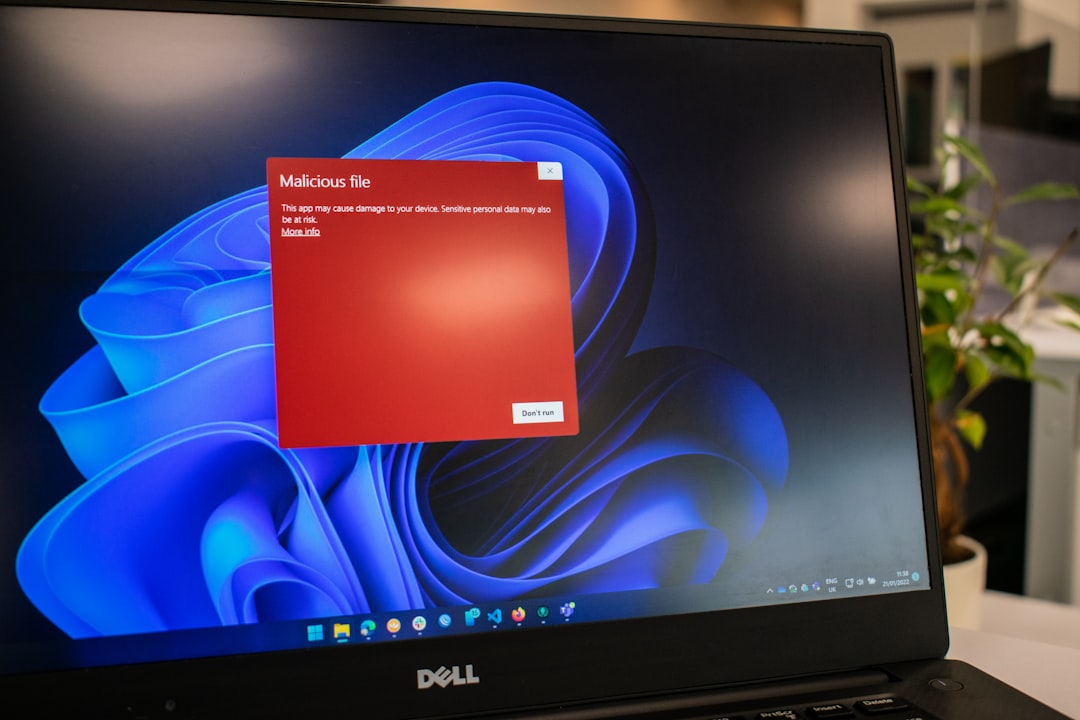
The Discord JavaScript error usually pops up during startup and blocks the app from launching. It often includes messages like “A JavaScript error occurred in the main process”. This error happens when Discord can’t access certain files or scripts during boot. Possible culprits include:
- Corrupt installation files
- Damaged Discord cache or app data
- Conflicts with antivirus software
- Problems with Windows user permissions
Thankfully, these are common issues, and you don’t need to be a tech wizard to fix them.
Step 1: Restart Your Computer
This might sound too simple, but restarting your PC can often resolve temporary issues. A fresh reboot clears the system’s memory and stops any lingering processes from a faulty Discord session. Try relaunching Discord after the restart. If the error persists, move on to the next steps.
Step 2: End All Discord Tasks from Task Manager
Sometimes, Discord processes keep running in the background and interfere with startup. To eliminate this:
- Press Ctrl + Shift + Esc to open Task Manager.
- Find any processes named Discord.
- Select them and click End Task.
Once all Discord tasks are closed, try launching the app again.
Step 3: Delete Discord AppData and Local App Files
Corrupted application data can lead to JavaScript errors. Manually removing these folders forces Discord to create fresh files after reinstallation.
- Press Windows + R to open the Run dialog box.
- Type
%appdata%and hit Enter. Locate and delete the Discord folder. - Repeat the process for
%localappdata%and delete the Discord folder there too.
Now that you’ve wiped the cache and local files, the next step is a clean reinstall.
Step 4: Uninstall and Reinstall Discord
A clean reinstall can often resolve hidden issues within the app. Here’s how to do it:
- Go to Settings > Apps > Installed Apps.
- Find Discord in the list and click Uninstall.
- After uninstalling, download the latest version from the official Discord website.
- Run the installer as administrator by right-clicking and selecting Run as administrator.

Once reinstalled, launch Discord. If it opens without the JavaScript error, congratulations—you’re back in business!
Step 5: Temporarily Disable Your Antivirus Software
Some antivirus programs (especially third-party ones like Avast or AVG) may mistake Discord’s installer or files as threats. This can block specific operations that result in JavaScript errors.
To test this, temporarily disable your antivirus and try relaunching or reinstalling Discord. If it works, make sure to add Discord to your antivirus’ whitelist or exception list so it’s not blocked in the future.
Warning: Do not leave your antivirus disabled for long. Enable it immediately after verifying the solution.
Step 6: Run Discord as Administrator
Lack of proper permissions can prevent Discord from accessing necessary files or services. Running the app as administrator can solve this:
- Right-click on the Discord shortcut on your desktop or Start menu.
- Select Run as administrator.
If Discord opens successfully, consider setting it to always run as administrator. To do this:
- Right-click on the shortcut and choose Properties.
- Go to the Compatibility tab.
- Check the box for Run this program as an administrator.
- Click Apply and then OK.
Step 7: Create a New Windows User Account
If all else fails, the issue might be tied to your specific Windows user profile. In that case, creating a new one can help:
- Go to Settings > Accounts > Family & other users.
- Click Add someone else to this PC.
- Create a new user account and set it as administrator.
- Log in with the new user account and try installing/launching Discord again.
This workaround can confirm if the problem is profile-specific. If Discord works in the new account, you’ll know the original user profile had corrupted settings or permissions.
Bonus Tips: Keep Windows & Discord Updated
Outdated system files or Discord versions can lead to compatibility issues. Make sure you regularly update both:
- Go to Settings > Windows Update and ensure your OS is up to date.
- Discord usually auto-updates, but if you suspect it’s not working correctly, reinstalling often forces a fresh update.
When to Contact Discord Support
If you’ve tried everything above and still encounter the JavaScript error, it might be time to contact Discord Support. Provide them with detailed logs, including any error pop-ups and what steps you’ve already attempted. They might be able to guide you through a more advanced resolution.
Conclusion
The Discord JavaScript error on Windows can be frustrating, especially when it seemingly appears out of nowhere. But you don’t need a computer science degree to fix it. From clearing your app data to reinstalling with admin privileges, every solution here is manageable—even for beginners.
Remember: patience is key. By systematically working through these steps, you should be able to resolve the error and get back to chatting, gaming, or moderating your community in no time.









