



















Use Firefox as your quick reality check, then fix Chrome if the error only happens there. That is the fastest way to handle ERR_NETWORK_CHANGED. Chrome often shouts first when Wi Fi, VPNs, DNS, or adapters switch. Firefox can help prove if the whole network is sick, or if Chrome is just being dramatic.
TLDR: ERR_NETWORK_CHANGED means your browser detected a network switch during loading. For example, your laptop jumps from home Wi Fi to a phone hotspot, and Chrome stops the page mid sip. In a simple 20 reload test, Chrome may show the error 4 or 5 times during a VPN reconnect, while Firefox may only pause and retry. If both browsers fail, fix the network. If only Chrome fails, clean up Chrome settings, DNS, cache, or extensions.
What This Error Really Means
The error sounds scary. It is not.
ERR_NETWORK_CHANGED means the browser started loading a page, then your network route changed. That change can be tiny. It can also be huge.
Common causes include:
- Switching from Wi Fi to Ethernet.
- A weak Wi Fi signal dropping for one second.
- A VPN reconnecting in the background.
- DNS settings changing.
- Your router renewing an IP address.
- Security software filtering traffic.
- A laptop waking from sleep.
Honestly, it feels like Chrome trips over its own shoelaces here. You click a link. The page starts. Then boom. A gray error page. Very helpful, thanks.

Chrome vs Firefox: The Big Difference
Chrome is strict. It watches network changes closely. If the connection path changes while a page loads, Chrome often stops and throws the error.
Firefox is calmer. It may retry more quietly. It may show a loading pause instead of a full error page. This makes Firefox useful for testing.
That does not mean Firefox is always better. It just reacts in a different way.
Think of Chrome as a nervous guard dog. It barks at every sound. Firefox is the cat on the sofa. It notices. It blinks. It may go back to sleep.
Fast Test: Is It Chrome or Your Network?
Do this before changing ten settings. Save your sanity.
- Open the same page in Chrome.
- Open the same page in Firefox.
- Refresh both pages five times.
- Turn your VPN off, if you use one.
- Try again.
- Switch to another Wi Fi network or hotspot.
- Try again.
If both browsers fail, the issue is likely your network, router, VPN, or system DNS.
If only Chrome fails, the issue is likely Chrome cache, Chrome DNS, extensions, or a browser setting.
If Firefox fails too, do not waste 40 minutes deleting Chrome profiles. The problem is bigger than Chrome.
When Chrome Is the Problem
Chrome can get weird with stored network data. It keeps a lot of speed tricks in memory. These tricks are great until they are not.
Try these fixes:
- Clear Chrome cache: Go to settings and clear cached images and files.
- Flush Chrome DNS: Open chrome://net-internals/#dns, then clear the host cache.
- Disable extensions: Ad blockers, proxy tools, and privacy extensions can clash.
- Turn off VPN extensions: Browser VPNs can switch routes mid load.
- Reset Chrome flags: Go to chrome://flags and reset anything you changed.
Expect to waste time on extensions if you have many. One tiny add on can ruin a normal afternoon. Start with anything that touches privacy, proxy, firewall, cookies, or ads.
When Firefox Helps You Troubleshoot
Firefox is great as a clean comparison tool. It does not share Chrome’s exact cache. It does not use Chrome extensions. It also handles some connection blips with less noise.
Use Firefox when:
- You need to check if a website is really down.
- Chrome keeps showing the same error.
- You recently installed a Chrome extension.
- You changed DNS or VPN settings.
- You are testing work Wi Fi versus home Wi Fi.
If Firefox loads the page every time, Chrome is your suspect. If Firefox also fails, blame the network first.

When the Network Is the Real Villain
Sometimes Chrome is not guilty. Sometimes your connection is wobbling like a chair with one short leg.
Check these items:
- Wi Fi signal: Move closer to the router.
- Router: Restart it. Yes, the old trick still works.
- VPN: Turn it off and test again.
- DNS: Try Google DNS or Cloudflare DNS.
- Ethernet: Test with a cable if possible.
- Mobile hotspot: Try your phone connection.
A quick router restart can fix stale IP issues. It can also clear odd routing hiccups. Give it two minutes. Not ten seconds. Routers are slow little boxes with big feelings.
Simple DNS Fixes
DNS is the phonebook of the web. If it changes while you browse, Chrome may panic.
Try this on Windows:
- Open Command Prompt as admin.
- Type ipconfig /flushdns.
- Press Enter.
- Restart Chrome.
On macOS, restart the browser first. Then restart Wi Fi. If needed, change DNS under network settings.
Good DNS choices include:
- Cloudflare: 1.1.1.1 and 1.0.0.1
- Google: 8.8.8.8 and 8.8.4.4
Do not change five things at once. Change one thing. Test. Then move on. That keeps the mystery small.
VPNs Are Frequent Trouble Makers
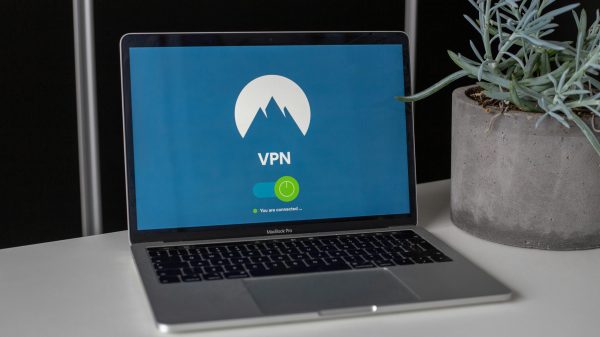
VPNs are useful. They are also common causes of ERR_NETWORK_CHANGED.
A VPN can reconnect silently. It can switch servers. It can change DNS. It can move traffic through a new route. Chrome notices this fast.
Test like this:
- Turn the VPN off.
- Close Chrome fully.
- Open Chrome again.
- Load the same page.
- Repeat in Firefox.
If the error vanishes, your VPN is involved. Try another VPN server. Update the VPN app. Or turn off features like split tunneling for a test.

Quick Decision Guide
Use this cheat sheet.
- Chrome fails, Firefox works: Clear Chrome cache. Check extensions. Flush Chrome DNS.
- Both fail: Restart router. Check VPN. Test another network.
- Error appears after sleep mode: Turn Wi Fi off and on. Restart browser.
- Error appears on VPN only: Change VPN server. Check DNS settings.
- Error appears on one website: Test the site in both browsers. The site may have issues.
Best Order of Fixes
Here is the clean order. It saves time.
- Test the page in Firefox.
- Turn off VPN.
- Restart Wi Fi.
- Restart the router.
- Clear Chrome cache.
- Disable Chrome extensions.
- Flush DNS.
- Try another network.
This gives you a clear answer. Browser problem. Network problem. VPN problem. No guessing game.
Final Takeaway
Chrome is better at warning you. Firefox is better at helping you compare. Use both. That is the trick.
If Chrome shows ERR_NETWORK_CHANGED and Firefox loads fine, fix Chrome. If both browsers complain, fix the network. Keep it simple. Test one thing at a time. Then get back to the page you wanted in the first place.