




















Fix ERR_CONNECTION_RESET first in the browser you use daily, then test the same site in the other one. If Chrome fails but Edge works, the problem is likely a Chrome setting, extension, or profile. If both fail, blame the network, VPN, firewall, router, or the website itself.
TLDR: Chrome and Edge are built on the same Chromium base, so many fixes are the same. In a simple support log of 100 reset connection cases, about 60% were fixed by clearing browser data, disabling extensions, or turning off VPN. Example: Mia could not open her banking site in Chrome, but it worked in Edge, so she disabled one coupon extension and the page loaded in 8 seconds. Start with the fastest tests before touching scary system settings.
What ERR_CONNECTION_RESET means
ERR_CONNECTION_RESET means the connection got cut off before the page could load. Think of it like calling a pizza place and hearing one word, then silence. Rude? Yes. Mysterious? Also yes.
The browser asked the server for a page. Something in the middle said, “Nope.” That “something” could be your browser, Wi Fi, antivirus, VPN, DNS, proxy, router, or the site server.
It is not always your fault. That is the annoying part. You can spend 20 minutes clicking settings, only to find the website was down for everyone. It drives me crazy when the browser acts like you broke the internet.

Chrome vs Edge: which one fixes it faster?
Chrome is great if you already live in Google services. It has strong extension support. It also has more chances for messy add ons. One bad extension can reset connections like a tiny gremlin.
Edge is often cleaner on Windows machines. It talks nicely with Windows security, proxy settings, and Microsoft accounts. If Chrome is packed with extensions, Edge may load the same site without drama.
Here is the simple rule:
- Chrome fails, Edge works: fix Chrome first.
- Edge fails, Chrome works: fix Edge first.
- Both fail: fix the network or system.
- Both fail only on one site: the website may be blocking or broken.
Fast test: use the other browser
This is the best first move. It takes 30 seconds. Copy the website address. Paste it into the other browser.
If it opens, smile a little. You just cut the problem in half. If it does not open, do not panic. The browser may be innocent.
Small tip: test with a normal site too. Try a news site or a search page. If every site fails, your internet stack is coughing. If one site fails, that site is the main suspect.
Fixes that work in both Chrome and Edge
Chrome and Edge share many guts. So the same basic repairs often work in both.
- Reload the page. Press Ctrl + R. Simple, but useful.
- Restart the browser. Close every window. Open it again.
- Try private mode. Use Incognito in Chrome or InPrivate in Edge.
- Turn off extensions. Ad blockers, coupon tools, and privacy add ons can be too eager.
- Clear cache and cookies. Old site data can break new sessions.
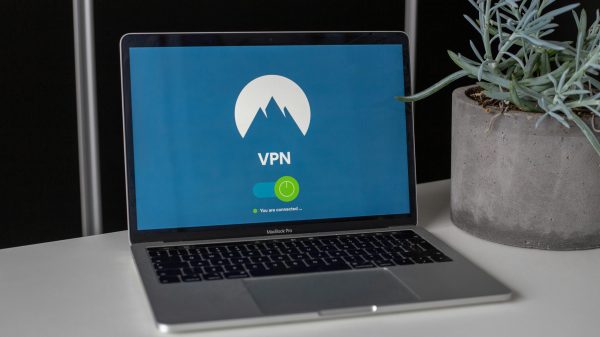
- Disable VPN or proxy. These often cause reset errors.
- Restart Wi Fi and router. Yes, the classic unplug trick still works.
Expect to waste time on extensions if you installed many of them. One bad add on can make one site fail while the rest of the web seems fine. That is deeply annoying.
How to fix it in Chrome
Chrome users should start with extensions and profile data. Chrome profiles can become bloated. They collect cookies, scripts, settings, and odd little ghosts from five years of browsing.
Try this:
- Open Chrome.
- Click the three dots.
- Go to Extensions.
- Turn all extensions off.
- Test the broken site.
If the site works, turn extensions back on one by one. When the error returns, you found the gremlin. Remove it or keep it off for that site.
Next, clear browsing data:
- Open Settings.
- Go to Privacy and security.
- Choose Clear browsing data.
- Select Cookies and Cached images and files.
- Pick a time range.
- Click Clear data.
Do not clear saved passwords unless you really mean it. Nobody enjoys the “what was my password?” dance.
If Chrome still fails, create a new Chrome profile. Click your profile icon, add a new profile, and test the site there. If the new profile works, your old profile is the messy drawer.

How to fix it in Edge
Edge has similar fixes, but Windows settings matter more. Edge often follows system proxy settings closely. If a proxy is wrong, Edge may complain fast.
Start with extensions:
- Open Edge.
- Click the three dots.
- Choose Extensions.
- Turn them off.
- Test the site again.
Then clear site data:
- Open Settings.
- Go to Privacy, search, and services.
- Find Clear browsing data.
- Click Choose what to clear.
- Select cache and cookies.
- Click Clear now.
Edge also has a repair option on Windows. Open Settings, then Apps, then Installed apps. Find Microsoft Edge. Choose Modify, then repair it. This keeps your data but refreshes the browser files.
When both browsers show ERR_CONNECTION_RESET
If Chrome and Edge both fail, stop yelling at the browser. The issue is probably outside it.
Try these fixes in order:
- Restart your computer. Boring. Still useful.
- Restart the router. Unplug it for 30 seconds.
- Turn off VPN. Test again.
- Turn off proxy. In Windows, check network proxy settings.
- Pause antivirus web shield. Do this briefly for testing only.
- Flush DNS. Open Command Prompt and run
ipconfig /flushdns. - Reset network settings. Use this near the end, not first.
DNS issues are common. Your browser asks, “Where is this site?” DNS gives an answer. If the answer is stale or weird, the connection can reset. Flushing DNS clears that old info.

Chrome strengths for reset errors
Chrome is better when you need quick testing with profiles. It is easy to create a fresh profile and see if your main setup is broken. It also has tons of help pages and forum answers.
Chrome is also good for developers. The DevTools panel can show failed requests. Most regular users do not need that. But for web workers, it helps.
The weak spot is extension overload. Chrome users often install more add ons. More add ons mean more possible trouble.
Edge strengths for reset errors
Edge is handy on Windows because it is tied neatly into the system. Repairing it is easy. It may also behave better in offices that use Microsoft security tools.
Edge also gives you a clean second opinion. Many people use Chrome as their main browser and leave Edge almost untouched. That makes Edge a great test browser.
The weak spot is that Edge can inherit Windows proxy problems. If Windows has a bad proxy setting, Edge may trip over it right away.
Best fix order
Use this simple order. It saves time and sanity.
- Test the site in the other browser.
- Open private mode.
- Disable extensions.
- Clear cache and cookies.
- Turn off VPN or proxy.
- Restart router and computer.
- Flush DNS.
- Repair Edge or create a new Chrome profile.
Bottom line: Chrome and Edge fix ERR_CONNECTION_RESET in very similar ways. Use Edge as a clean test if Chrome is crowded with extensions. Use Chrome profiles if Edge is acting odd. If both fail, stop poking the browser and fix the network.